
How to Create a Sticky Header in Elementor (2026 guide)
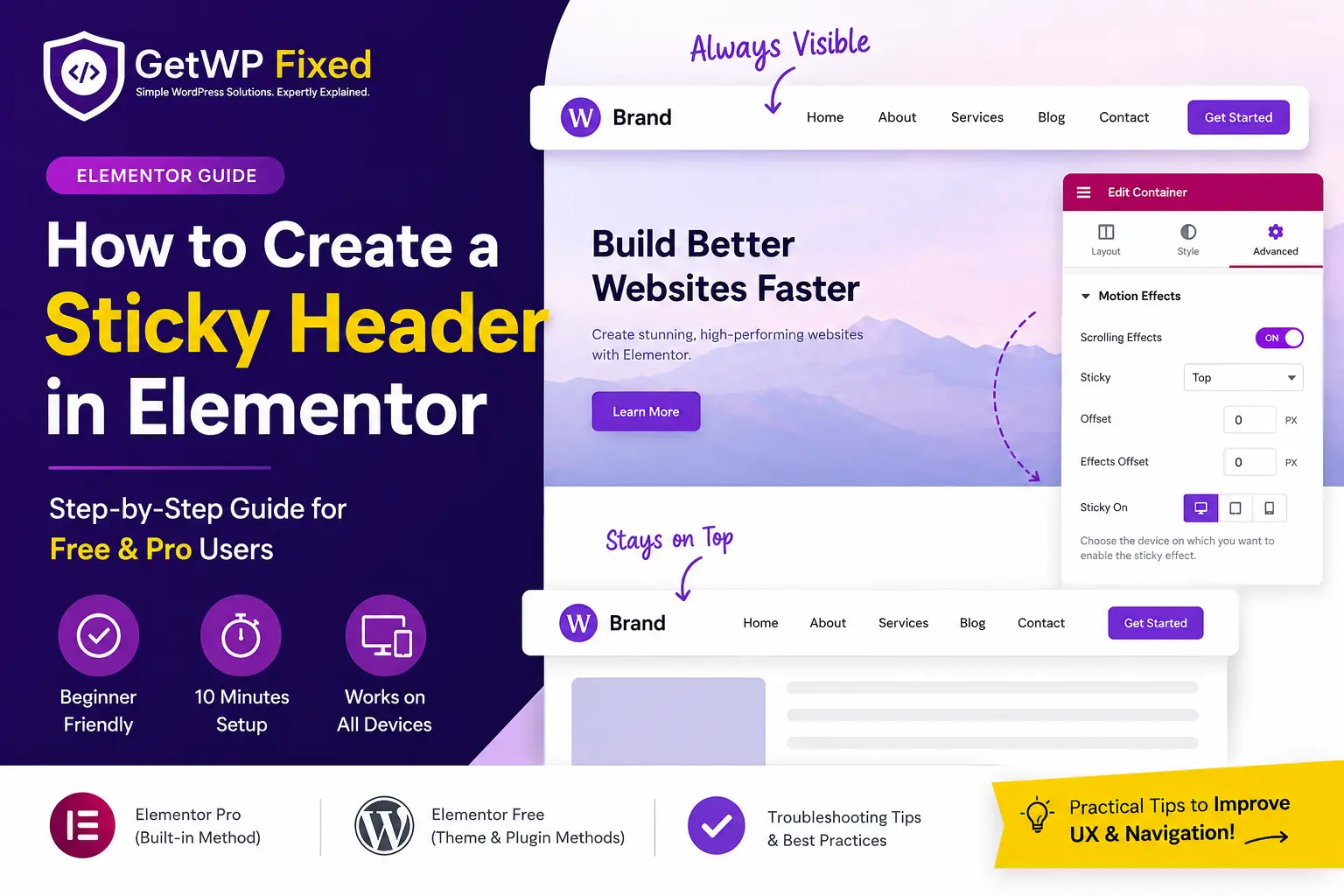
A sticky header keeps your website’s navigation visible as visitors scroll down the page. It improves user experience by making menus, logos, and call-to-action buttons accessible at all times. If you’re using Elementor, you can create a professional sticky header in just a few minutes using Elementor Pro or a free alternative. In this guide, you’ll learn how to create a sticky header in Elementor step by step, along with common mistakes to avoid and solutions if it doesn’t work as expected. Quick Answer If you’re using Elementor Pro, open your header template, select the parent container, go to Advanced → Motion Effects, set Sticky to Top, and publish the changes. If you’re using Elementor Free, you can achieve a similar result using your theme’s built-in sticky header option or a lightweight WordPress plugin. At a Glance Item Details Difficulty Beginner Time Required 10 Minutes Elementor Version Free & Pro WordPress Version 6.0 or later Recommended Method Elementor Pro Last Updated July 2026 What Is an Elementor Sticky Header? An Elementor sticky header is a header that stays fixed at the top of the screen while visitors scroll through your website. Instead of disappearing when users move down the page, it remains visible, allowing quick access to your navigation menu, logo, search bar, or contact button. For example, imagine you’re reading a long blog post and want to visit another page. Without a sticky header, you’d have to scroll back to the top to find the navigation menu. With a sticky header, the menu is always available, making navigation faster and more convenient. Most business websites, online stores, portfolios, and SaaS websites use sticky headers because they improve usability and help visitors move around the site more efficiently. 💡 Pro Tip: Apply the sticky effect to the parent header container, not just the Navigation Menu widget. This ensures your logo, menu, and action buttons stay together while scrolling. Why Should You Use a Sticky Header? A sticky header isn’t just a design trend, it offers real usability benefits. Benefits of a Sticky Header Benefit Why It Matters Better Navigation Visitors can access the menu anytime without scrolling back to the top. Improved User Experience Makes browsing smoother, especially on long pages. Higher Engagement Users are more likely to explore additional pages. Increased Conversions Important buttons like Contact, Book Now, or Shop remain visible. Professional Appearance Creates a polished, modern website experience. Sticky headers are especially useful for: Before You Start Before creating a sticky header, make sure you have the following: If you’re using Elementor Free, don’t worry. We’ll also cover an alternative method later in this guide. How to Create a Sticky Header in Elementor Pro Elementor Pro includes a built-in Sticky feature, making it the easiest and most reliable way to create a sticky header. Follow these steps: Step 1: Open Your Header Template In your WordPress dashboard, go to: Templates → Theme Builder → Header Open the header you want to make sticky by clicking Edit with Elementor. Step 2: Select the Parent Header Container Click the outermost header container (or section if you’re using the older layout). This is one of the most common mistakes beginners make. If you select only the Navigation Menu widget, the menu may stay fixed while the logo and other header elements scroll away. Always apply the sticky settings to the entire header container. Step 3: Enable the Sticky Option With the header container selected: Go to: Advanced → Motion Effects Under Sticky, choose: Top This tells Elementor to keep the header attached to the top of the browser window while visitors scroll. Step 4: Choose Where the Sticky Header Works Under Sticky On, select the devices where you want the sticky header to appear. For most websites, enabling it on Desktop, Tablet, and Mobile works well. However, if your header is large, you may prefer to disable it on mobile to save screen space. 💡 Pro Tip: Test your sticky header on a real mobile device. A header that looks perfect on desktop may feel oversized on a smaller screen. Step 5: Publish and Test Click Update to save your changes. Now visit your website and scroll down the page. Your header should remain fixed at the top while the rest of the content moves underneath it. If it doesn’t, don’t worry we’ll cover the most common fixes later in this guide. How to Create a Sticky Header in Elementor Free If you’re using Elementor Free, you won’t find the Sticky option under Motion Effects because it’s an Elementor Pro feature. The good news is that you can still create a sticky header without upgrading. The two easiest methods are using your WordPress theme’s built-in sticky header feature or installing a lightweight sticky header plugin. Method 1: Use Your Theme’s Sticky Header Feature (Recommended) Many modern WordPress themes already include a sticky header option. If your theme supports it, this is the simplest and most reliable solution because it doesn’t require additional plugins. Popular themes with sticky header support include: Step 1: Open the WordPress Customizer From your WordPress dashboard, navigate to: Appearance → Customize Step 2: Open Header Settings Depending on your theme, the option may be named: Open the header settings and look for a Sticky Header or Fixed Header option. Step 3: Enable Sticky Header Turn on the Sticky Header option and publish your changes. Visit your website and scroll down the page to confirm that the header remains fixed at the top. 💡 Pro Tip: If your theme already supports sticky headers, use that feature instead of installing another plugin. Fewer plugins generally mean better performance and fewer compatibility issues. Method 2: Use a Sticky Header Plugin If your theme doesn’t include a sticky header feature, you can use a dedicated WordPress plugin. Choose a plugin that is: After installing the plugin: ⚠️ Common Mistake: Don’t install multiple sticky header plugins. Running more than one can cause flickering, duplicate headers, or unexpected layout issues. Elementor … Read more