WordPress Tutorials for Beginners (2026) | GetWPFixed

How to Fix WordPress Critical Error & White Screen (2026 Guide)

Dattatraya from GetWPFixed showing how to recover a crashed website and fix WordPress critical error

There is nothing worse than opening up a client’s site and seeing a blank screen with ‘Error Establishing a Database Connection.’ I’ve run into this issue dozens of times during domain migrations and hosting cutovers. In the UK and US, where site uptime is literally money, this isn’t just a technical glitch,it’s a business emergency. I’ve been in the trenches with these errors more times than I care to admit. At GetWPFixed, I’ve learned that while the White Screen of Death looks like the end of the world, it’s actually just WordPress protecting your database from broken code. Here is the exact, step-by-step checklist I use to get my WordPress sites back online fast. 1. The “Ghost in the Machine”: Recovery Mode Before you start hacking away at files, check your inbox. Modern WordPress is actually quite helpful—it usually sends an automated “SOS” email to the site admin. The Insider Secret: Look for a link that mentions Recovery Mode. This isn’t just a login; it’s a sandbox that “sandboxes” the broken plugin, allowing you to enter the backend even when the frontend is dead. If that email hasn’t arrived after 10 minutes, move to Step 2. 2. How to Fix WordPress Critical Error Using FTP and File Manager When you’re locked out of the house, you don’t break the door; you find a side window. FTP (or your hosting File Manager) is that window. The Pro Move: Navigate to /wp-content/. Rename your plugins folder to plugins_debug. Refreshing your site now forces WordPress to load with zero plugins. If the site comes back (looking a bit messy), you’ve confirmed the “killer” is a plugin. I usually then rename them back one-by-one—it’s tedious, but it’s the only way to find the exact conflict without guessing. Also Read: How to Create a Professional WordPress Website from Scratch (2026 Guide) 3. Using Debug Mode to Fix WordPress Critical Error in the Code Stop flying blind. If you want to fix WordPress critical error problems like a senior dev, you need to see the “black box” recorder. The Fix: Open your wp-config.php file. You’ll see a line for WP_DEBUG. Set it to true. Crucial Step: Add define( ‘WP_DEBUG_LOG’, true ); right below it. Now, WordPress will whisper its secrets into a file called debug.log in your wp-content folder. It will tell you exactly which file and which line of code caused the crash. 4. The “Memory Exhaustion” Ghost Often, a critical error isn’t about bad code; it’s about too much code. If you’re running Elementor Pro with 20 other plugins on a cheap server, your site might simply be running out of “breath” (PHP Memory). The Pro Fix: In your wp-config.php, add: define( ‘WP_MEMORY_LIMIT’, ‘512M’ );. I’ve seen this single line of code bring “dead” sites back to life in seconds. It’s the digital equivalent of giving your site an oxygen mask. Why Most AI-Generated Guides Fail (And Why This Works) Most AI tools will tell you to “reinstall WordPress.” That is terrible advice. A pro knows that 99% of errors are caused by a single line of conflicting code in a plugin or theme. We don’t delete the house to fix a broken lightbulb. Final Thoughts A critical error is a rite of passage for every WordPress owner. Once you’ve fixed your first one using FTP and Debugging, you’re no longer a beginner—you’re a site operator. Still seeing the White Screen? Drop the last error line from your debug.log in the comments. I’ll personally look at the code and tell you which plugin to delete.

How to Fix a Corrupted WordPress Database (2026 Guide)

Guide on How to fix corrupted Datatbase in WordPress

Introduction Finding your WordPress database corrupted is a major emergency for any website owner. WordPress relies heavily on open-source relational systems like MySQL or MariaDB to manage your backend assets. Behind the scenes, this structure stores all your posts, pages, user profiles, and critical configuration settings. Unfortunately, a WordPress database corrupted error will quickly drop your entire online business offline. In this article, I will show you how to repair your data tables so your website runs efficiently again. Why Should You Repair and Debug Your System? When a website slows down, finding the exact bottleneck is your primary task. For instance, debugging helps detect corrupted core files, theme incompatibilities, or exhausted PHP memory limits. The native WP_DEBUG command forces your server to display active PHP script errors. Similarly, the SAVEQUERIES command logs active table issues for rapid performance analysis. Therefore, you can add the following code blocks to your wp-config.php file to begin troubleshooting: PHP However, if you prefer using a visual plugin dashboard over editing core system files directly, you can install tools like Query Monitor or WP Debugging instead. Understanding Connection Errors and Data Blocks A frequent issue encountered by site owners is the “Error establishing a database connection” screen. If you encounter this on a brand-new installation, it usually means your configuration credentials are incorrect. On an established live site, however, a WordPress database corrupted error can arise from backend server exhaustion. For example, a budget hosting package may lack the necessary resource headroom to process sudden traffic spikes. Consequently, the volume of simultaneous data requests overflows, which forces the MySQL or MariaDB server to drop the connection entirely. Generally speaking, infrastructure problems can damage your tables in several ways: Also read: 10 Most Common WordPress Errors in 2026 Technical Architecture: MyISAM vs. InnoDB Thankfully, MySQL and MariaDB provide native maintenance tools to fix your broken data. For example, the CHECK TABLE command scans your code files for errors, while the REPAIR TABLE command rebuilds them. Your diagnostic path depends heavily on your specific database storage engine: Because InnoDB uses self-healing protocols, running a manual repair command inside phpMyAdmin will return an explicit error. It will state that the storage engine does not support manual repair. Do not be concerned by this message, as the system handles its own safety checks automatically. Furthermore, you should regularly execute the OPTIMIZE TABLE command. This utility reorganizes the physical layout of your data, which reduces server storage space and improves input/output (I/O) efficiency. Ultimately, this leads to significantly faster page loading speeds. You can trigger a complete database cleanup through four primary methods: How to Fix a WordPress Database Corrupted Error (5 Methods) Before attempting any major technical surgery on your tables, always complete these two safety steps: 1. Use the Built-In WordPress Repair Utility WordPress features an embedded emergency tool designed for automatic table maintenance. To unlock this script, open your wp-config.php file and add this line directly above the “Happy Publishing” comment block: PHP Next, open your browser and navigate to: https://yoursite.com/wp-admin/maint/repair.php The dashboard will present two options: click “Repair Database” for basic automated scans, or “Repair and Optimize Database” for a full performance tune-up. ⚠️ CRITICAL SECURITY NOTE: The moment your site is running smoothly, go back to your file structures and delete that line of code. Leaving it behind allows malicious actors to access your internal maintenance scripts. 2. Fix Tables Manually via phpMyAdmin For a direct, hands-on recovery method, you can use phpMyAdmin inside your web hosting control panel. 3. Run the Repair Command via WP-CLI Terminal If you prefer terminal environments, WP-CLI allows you to execute core database restorations directly over an SSH connection. Open your system terminal, navigate to your root directory, and execute this command: Bash The server will process your tables instantly and return a clean success message on your screen. 4. Utilize Web Hosting Control Panel Tools Many modern web hosts build custom optimization utilities directly into their client area dashboards to bypass code modifications entirely. 5. Repair Table Blocks Using Dedicated Plugins As long as you still have stable access to your admin dashboard area, repository plugins can handle the technical maintenance for you. Final Thoughts Maintaining a clean database ensures your WordPress website loads quickly and stays online. Therefore, making table optimization a regular part of your monthly maintenance workflow is highly recommended. While automated layout plugins make this a hands-off process, mastering emergency tools like phpMyAdmin ensures you can confidently resolve a WordPress database corrupted error whenever a critical server crash occurs.

10 Most Common WordPress Errors in 2026: The Ultimate Developer’s Fix List

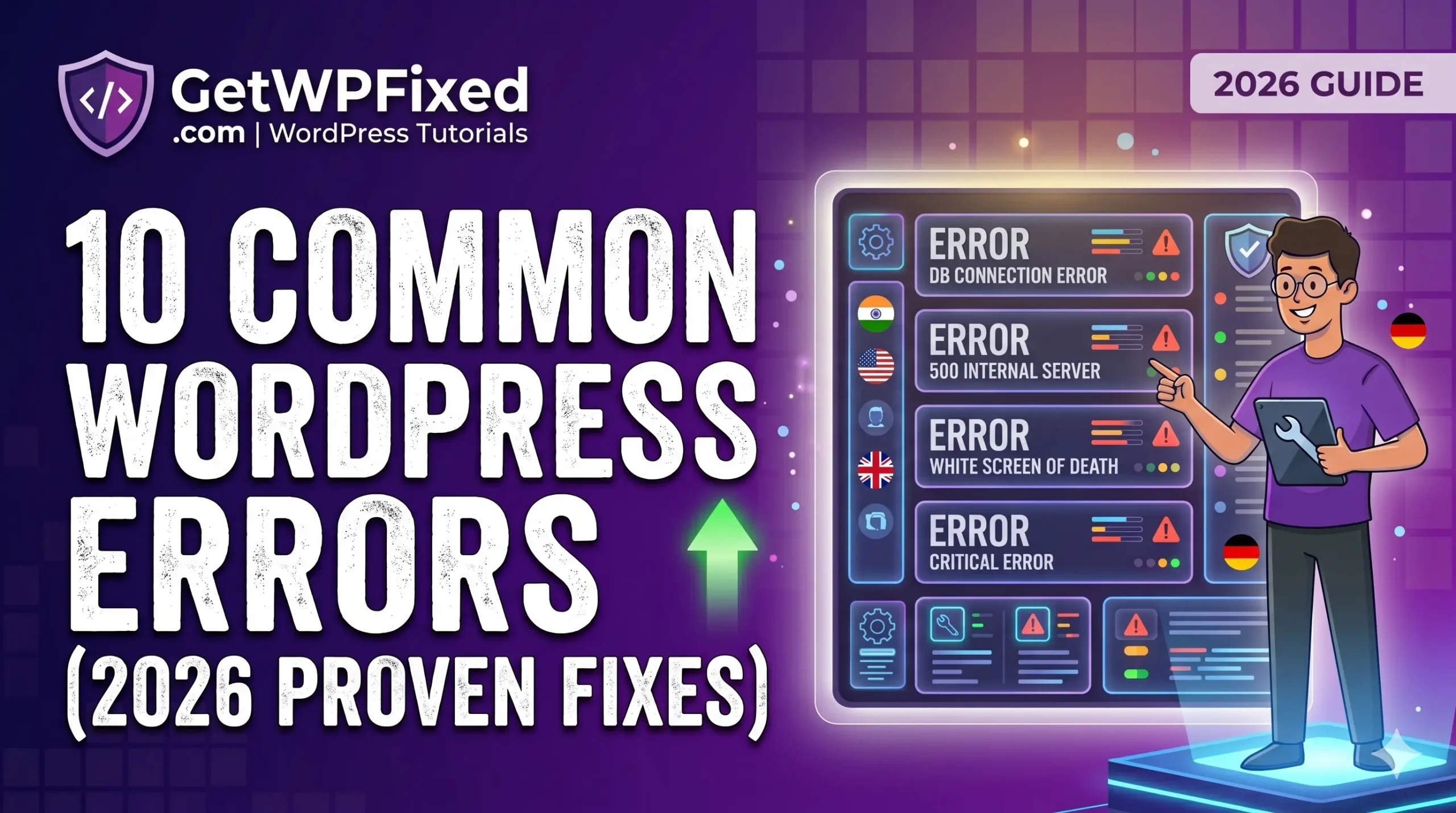
10 common wordpress errors

Stuck with a broken site? Learn how to fix the 10 most common WordPress errors in 2026. From database issues to the White Screen of Death, we have the expert solutions. 1. Fixing ‘Error Establishing a Database Connection’ This is one of the most frightening sights for any site owner. In 2026, this error usually stems from a credential mismatch or a server under heavy load. 2. Solving the ‘White Screen of Death’ (WSOD) The WSOD is a fatal error that leaves your screen completely blank. In 2026, this is almost always caused by a plugin conflict or a memory limit issue. 3. The ‘500 Internal Server Error’ and .htaccess This is the catch-all error for server-side problems. In 2026, it is frequently triggered by a corrupted .htaccess file. 4. ‘404 Page Not Found’ on Individual Posts If your homepage works but your posts return a 404, your permalink structure is broken. 5. WordPress Memory Exhausted Error As we use heavier builders like Elementor, sites often run out of PHP memory. Also read: How to increase WordPress Maximum Upload Size in 2026 6. The ‘Critical Error on Your Website’ (Recovery Mode) WordPress includes a built-in safety feature that emails the site admin a Recovery Link. Click here to check the compleate guide on How to fix critical error on your website? 7. ‘Robots.txt Unreachable’ As we saw with your recent Search Console issue, a blocked robots.txt prevents indexing. 8. ‘HTTP Error’ When Uploading Images This often happens when your server is out of resources or the image is too large. 9. ‘Too Many Redirects’ (Redirect Loop) This usually occurs when you have a conflict between your site settings and an SSL plugin. 10. Broken Images and Missing Thumbnails Preventing Future Errors: The GetWPFixed Strategy

Hostinger vs. MilesWeb for WordPress 2026: The Ultimate Developer’s Comparison

"Best WordPress Hosting India 2026 Comparison (Hostinger vs MilesWeb) - GetWPFixed"

In 2026, the criteria for the best hosting providers in India have fundamentally changed. It is no longer just about who is the cheapest; it is about who can handle the “Three Pillars of 2026 SEO”: Interaction to Next Paint (INP), Server-Side Rendering (SSR), and Global Edge Caching. Whether you are a developer in Kolhapur building for local clients or a freelancer targeting the US, UK, and German markets, your hosting choice is your site’s foundation. At GetWPFixed, I’ve benchmarked the top players to find the true winners for this year. 1. Why 2026 Requires a New Hosting Standard If you look at the data in the image below, you’ll see over 1,000 monthly searches for the best hosting providers, but many of the top-ranked guides are outdated. In 2026, “standard” SSDs and Apache servers are not enough. To rank on Page 1, you need: 2. Hostinger vs. MilesWeb: The 2026 Battle for India When searching for the best hosting providers India 2026, two names dominate the conversation. Let’s look at the “Expert Logic” behind each. Hostinger: The Global Performance Leader Hostinger has evolved into an infrastructure giant. For developers targeting the US, UK, and Germany while living in India, Hostinger is often the top choice. MilesWeb: The King of Local Support MilesWeb remains the most reliable option for Indian SMEs who value human connection. Also Read: How to Create a Professional WordPress Website from Scratch (2026 Guide) 3. Performance Benchmark: Global Load Times If your target audience is spread across the US, UK, Germany, and India, your host must have a strong Edge presence. Here is how the top best hosting providers compare in 2026: Region Hostinger (Global Edge) MilesWeb (Mumbai) Cloudways (High-End) India (Mumbai) 1.1s 0.9s 1.0s UK (London) 1.3s 2.4s 1.2s Germany (Frankfurt) 1.2s 2.7s 1.1s USA (New York) 1.4s 2.9s 1.3s 4. Decoding the Renewal Trap (The Pricing Reality) As seen in the commercial intent of your Ubersuggest data, users are looking for Value for Money. 5. Security & Reliability in 2026 A host is only as good as its uptime. In 2026, DDoS attacks are more sophisticated. Also read: How to Increase WordPress Maximum Upload Size in 2026 6. Verdict: Finding the Best Hosting Providers for Your Needs For Global Developers (US, UK, Germany Focus) If you are building sites for international clients, Hostinger is the winner. Their global data center network and integrated CDN ensure your client in Berlin sees the same speed as your client in London. For Local Business Owners (India Focus) If your business is strictly Indian, MilesWeb provides better long-term value and the peace of mind that comes with phone-based support in your local language. 7. Final Checklist for Choosing best Hosting Providers India 2026

Localhost WordPress WP Admin: How to Access Your Dashboard (2026 Guide)

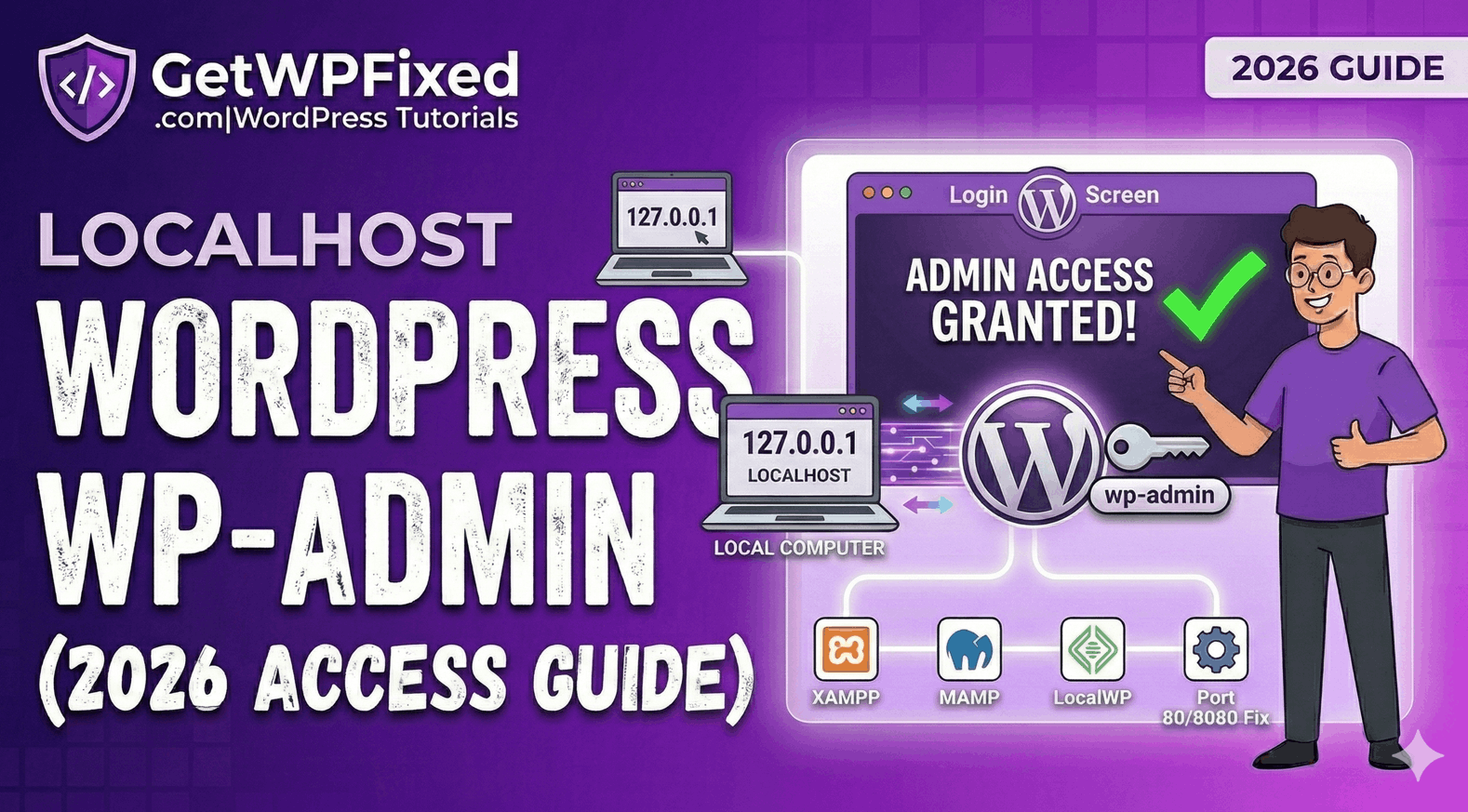
Troubleshooting localhost wordpress wp admin access on XAMPP and LocalWP

Trying to access your localhost wordpress wp admin panel only to find a ‘404 error’ or a blank screen is incredibly frustrating. Whether you are a US developer staging a new project or a student in India learning the ropes, getting back into your local dashboard is the first priority. At GetWPFixed, I’ve found that most local login issues come down to three simple technical hitches.” Here is my 2026 checklist to get you back into your local dashboard in under 60 seconds. 1. Check Your Local URL Structure When your site is live, it’s usually website.com/wp-admin. On a local server, the path depends on how you named your folder. The Fix: If you are using XAMPP, your URL is likely: http://localhost/YOUR_FOLDER_NAME/wp-admin If you are using LocalWP, it might be a custom domain like: http://mysite.local/wp-admin Pro Tip: If localhost doesn’t work, try using the local IP address: http://127.0.0.1/YOUR_FOLDER_NAME/wp-admin. Sometimes the browser gets confused by the word “localhost.” 2. Solving Port Conflicts for Localhost WordPress WP Admin If you have other software running (like Skype or a work VPN), they often “steal” the port that WordPress needs. If this happens, your localhost wordpress wp admin won’t load because the server can’t start. The Fix: Check your server dashboard (like the XAMPP Control Panel). If you see that Apache is running on port 8080 or 8888 instead of 80, you must include that number in your URL: http://localhost:8080/wp-admin 3. Verification in phpMyAdmin for Localhost WordPress WP Admin If you changed your site’s folder name, WordPress might still be trying to find the old one. This is a common “Pro” level error. The Pro Fix: 1. Open your local phpMyAdmin (usually at http://localhost/phpmyadmin). 2. Find your site’s database and open the wp_options table. 3. Look for the siteurl and home rows. 4. Ensure the path matches your current local folder exactly. If it says http://localhost/old-name, change it to http://localhost/new-name. 4. Moving from Localhost to Live Once you finally log into your localhost wordpress wp admin and finish your masterpiece, you’ll eventually need to show it to the world. Moving a site from a local computer to a US or UK server requires careful migration to avoid “Database connection errors.” (I’ll cover the best migration tools in my next post!) Final Thoughts Accessing your local dashboard should be the easiest part of your day, not the hardest. By double-checking your URL structure and port numbers, you can get back to building. Still stuck on a “Database Connection Error” on your local machine? Tell me which local server you are using (XAMPP, MAMP, or LocalWP) in the comments and I’ll help you troubleshoot!

How to Create a Professional WordPress Website from Scratch (2026 Guide)

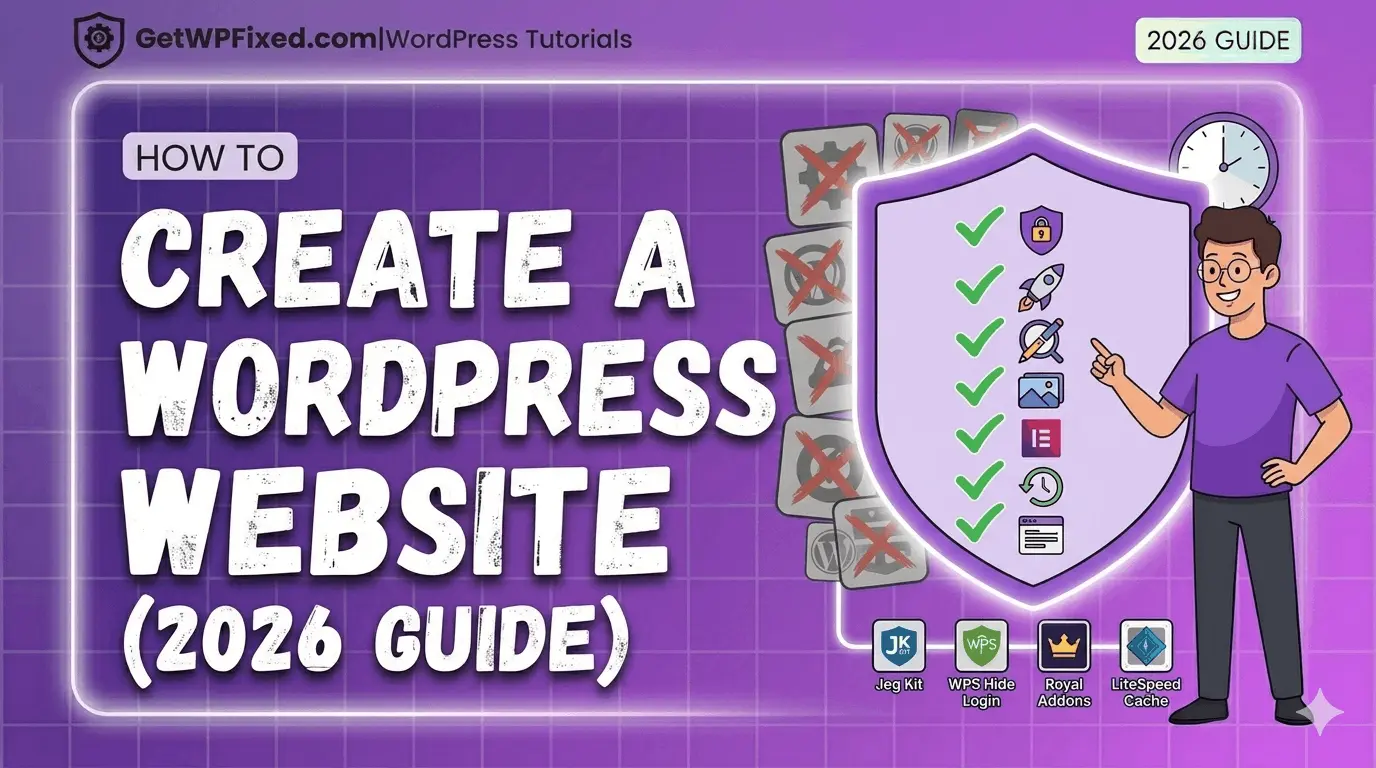
Step-by-step guide showing how to create a professional WordPress website with Hello Elementor and Jeg Kit 2026

If you want to create a professional WordPress website in 2026 without spending thousands of dollars, you are in the right place. Welcome to the ultimate guide where I, Dattatraya, will show you how to build your dream site from scratch. The good news? In 2026, you do not need to be a coding genius or have a $5,000 budget. You just need a plan. At GetWPFixed, I am all about simplifying the complex. I’ve seen thousands of people start their sites, and I know exactly where they get stuck. Forget the “get-rich-quick” tutorials. This is a real, human, honest roadmap. By the end of this guide, you will know exactly how to create a professional WordPress website that is fast, secure, and ready to dominate your niche. Let’s get you fixed! The “Dattatraya Philosophy”: Free but Pro Before we start, I need to tell you my one rule for this guide: We will utilize powerful FREE tools to get a premium result. Many “experts” in 2026 will tell you that you must buy Elementor Pro, a premium theme, and five different “Pro” addons to get a high-quality site. That is incorrect. My 10-step method will show you how to use a standard theme like Hello Elementor, powerful free addons like Royal Elementor Addons, and advanced free designers like Jeg Elementor Kit to build a site that looks like it cost thousands of dollars. Here is your 10-step roadmap to creation. Part 1: The Invisible Foundation (Hosting & Install) Step 1: Secure your Domain & Hosting (Your 2026 Check) Think of your Domain (e.g., getwpfixed.com) as your street address, and Hosting as the actual physical house. You must own your domain, and your hosting is the most critical technical choice you will make. In 2026, do not accept cheap, outdated hosting from a “big name” host. Technology has moved on. If your host doesn’t offer this specific 2026 checklist, move on: These specs are the foundation for a fast site. Remember our core principle: optimizing performance is the key to having a successful site, and it all starts here, just like I discussed in my how to fix a slow Elementor website guide. Step 2: Install WordPress (The One-Click Way) Almost every modern host offers a “One-Click WordPress Install” or an “Auto-Installer.” It usually looks like a large blue button in your hosting control panel. Use it. Step 3: Cleanup and Basic Settings When you log in for the first time (yourdomain.com/wp-admin), you will see some sample content. Be ruthless: Finally, go to Settings > Permalinks. Change this setting to “Post Name.” This ensures your URL looks like mysite.com/about instead of mysite.com/?p=123. It’s cleaner for users and critical for SEO. Part 2: Design & Content (The Vision) Step 4: Choose a “Speed-First” Theme Choosing the right theme is the first major decision you make when you create a professional WordPress website. Elementor is your “designer,” not your theme. You need a simple “blank canvas.” For this guide, I highly recommend installing the free Hello Elementor theme. It is a “minimalist shell” designed specifically to let Elementor do the work, without adding extra code that can slow your site down—a critical choice if you want to fix slow Elementor website issues later. Step 5: Using Elementor and Jeg Kit to Create a Professional WordPress Website This is where the magic happens. We need our design team: Why Jeg Kit? This is my “pro hack” for 2026. The free version of Elementor locks you out of designing your site’s header and footer. Jeg Elementor Kit unlocks these exact “Pro” features for free. It lets you create custom headers, footers, and archive pages, and includes dozens of stunning, pre-made template kits that you can import with a single click. Part 3: The Technical Standard (Security & Speed) Step 6: Install the Essential Must-Have Plugins You are ready to activate the tools that will power your site. This is a common point where beginners overload their sites, so we will be minimalist. Refer back to my list of 7 essential must have plugins for a complete guide. For this creation roadmap, ensure you install these three immediately: Step 7: Finalize Performance Optimization A slow site will fail, regardless of how good it looks. With LiteSpeed activated, go to Elementor > Settings > Performance and enable the native experimental features for improved asset loading. Also, ensure you have a plugin like Converter for Media installed to serve efficient WebP images. These are the steps I detailed to fix slow Elementor website performance, and they are not optional in 2026! Step 8: Complete Foundational Security Your site is now a target. We must harden the defenses. Remember what we learned about securing your entrance? Part 4: Building the Framework (The Pages) Step 9: Create Your “Core” Pages Your site needs structure. Go to Pages > Add New and create five pages with these standard titles (we won’t design them yet, just create the structure): Crucial Link: Go to Settings > Reading. Change “Your homepage displays” to “A static page.” Select your newly created “Homepage” for the homepage and “Blog” for the posts page. Now that your pages are ready, you can see how easy it is to create a professional WordPress website using free tools. Step 10: Launch Your First Post & Submit Your Sitemap Go to Posts > Add New and write your very first blog post! Tell your audience what your site is about and what they can expect. Share your passion, but remember that security is key, even when launching content. If you’ve been working on routine maintenance and see an error, don’t panic! Check out my guide if your WordPress is stuck in maintenance mode to get back online in minutes. Once your post is published, go to your Rank Math SEO settings, find the Sitemap settings, and copy your Sitemap URL (usually sitemap_index.xml). You must submit this URL to your Google Search Console account so Google can officially index your … Read more