WordPress Speed & Performance Optimization Guide

Is Core Web Vitals a Ranking Factor in 2026?

Is Core Web Vitals a Ranking Factor 2026 Guide (LCP INP CLS)

In the early days of WordPress, Speed was a luxury. By 2026, it has become a baseline requirement for survival. If you are asking, is core web vitals a ranking factor?, the answer is a resounding YES—but with a strategic twist that most generic SEO blogs miss. With the rollout of the March 2026 Core Update, Google has shifted from treating performance as a bonus to treating it as a barrier to entry. If your site fails the Core Web Vitals (CWV) thresholds, you aren’t just losing a few spots; you are being filtered out of the top results by an algorithm that prioritizes Real User Experience (CrUX) above almost everything else. 1. Why Is Core Web Vitals a Ranking Factor in 2026? Google’s ultimate goal is to keep users on their search engine. If Google sends a user to a slow, jumpy website, that user has a bad experience with Google. To prevent this, Google uses three specific metrics to quantify happiness. In 2026, these aren’t just numbers in a lab; they are pulled from real Chrome users visiting your site from Kolhapur, London, or New York. The Tie-Breaker Effect Imagine two websites writing about “The Best WordPress Hosting in India.” Both have excellent content, high-quality backlinks, and established authority. In 2026, Site A wins every single time. In competitive niches across the US and UK, where content quality has reached a plateau, your technical performance is the only “Tie-Breaker” left. 2. Is Core Web Vitals a Ranking Factor for Mobile Search? Google moved to Mobile-First Indexing years ago, but in 2026, this has reached its peak. Google now primarily uses the mobile version of your site to determine your rankings—even for desktop searches. If your site loads fast on your office MacBook but lags on a mid-range Android phone in a 4G area of Germany, your rankings will suffer globally. This is because Core Web Vitals are context-aware. Google knows if your audience is on a high-speed fiber connection or a fluctuating mobile network, and they adjust your Ranking Weight accordingly. Also read: How to Get a 90+ Score on PageSpeed Insights (2026 Guide) 3. Understanding the 2026 Thresholds: LCP, INP, and CLS To understand “is core web vitals a ranking factor”, you must understand the three specific tests your site must pass. A. Largest Contentful Paint (LCP) – The Loading Test LCP measures how long it takes for the largest visual element (usually your hero image or main headline) to appear. B. Interaction to Next Paint (INP) – The Snappiness Test INP replaced FID (First Input Delay) and is now the most critical metric for 2026. It measures the delay for every interaction, not just the first one. C. Cumulative Layout Shift (CLS) – The “Stability” Test Does your content jump when an ad loads? That is CLS. 4. How Your Hosting Choice Directly Impacts Your Ranking Factor Many developers make the mistake of trying to optimize a slow server. You cannot plugin your way out of bad hosting. If your TTFB (Time to First Byte) is over 600ms, your LCP will almost always fail. In 2026, we recommend: Using a host with LiteSpeed servers is no longer optional if you want to use the LiteSpeed Cache plugin to its full potential to fix core web vitals errors. 5. The Impact of Failing: The Search Console Warning If you ignore these metrics, you will eventually see a “Poor” status in your Google Search Console. In 2026, a “Poor” status is a leading indicator of an upcoming Ranking Drop. When Google sees a pattern of “Poor” performance across a domain, they don’t just penalize one page; they may lower the Trust Score for your entire brand. This makes it harder for your new content to rank, regardless of how good it is. 6. Summary: The GetWPFixed Performance Checklist If you want to ensure your site is on the right side of the 2026 algorithm, follow this checklist: Action Item Technical Goal Priority Upgrade to NVMe Hosting Lower TTFB to < 200ms Critical Implement AVIF Images Reduce LCP by 30% High Delay Third-Party JS Fix INP “Lag” issues High Set Image Dimensions Eliminate CLS “Jumps” Medium Final Thoughts: Experience Over Numbers At the end of the day, Google cares about the person behind the screen. Is core web vitals a ranking factor? Yes. But more importantly, it is a Conversion Factor. A site that passes these tests is a site that makes money. Is your site currently stuck in the “Orange” or “Red” zone? Comment below with your URL, and I’ll give you a free technical breakdown of which metric is holding your rankings back!

How to Get a 90+ Score on PageSpeed Insights (2026 Guide)

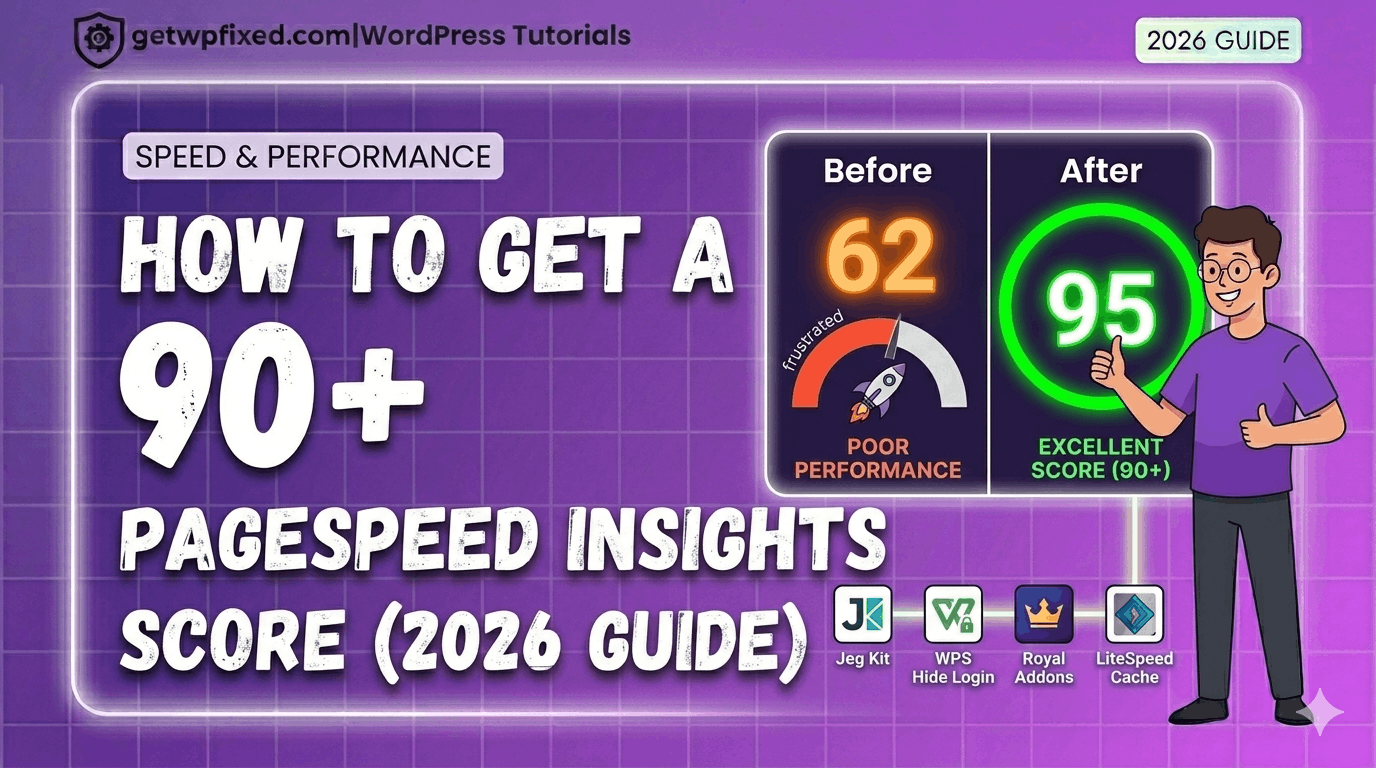
PageSpeed Insights 95 score result for GetWPFixed WordPress tutorial

Achieving a top score on PageSpeed Insights for both mobile and desktop is the goal of every developer. If you want to achieve a 90+ score on PageSpeed Insights in 2026, you don’t need to be a coding expert. I recently took my own site, GetWPFixed, from a struggling 62 to a lightning-fast 95 on mobile and 91 on Desktop In this 2026 guide, I’m going to show you the exact “real world” steps I took to achieve this score on PageSpeed Insights. No fluff, no expensive plugins—just the technical fixes that actually matter. Why a High Score on PageSpeed Insights Matters in 2026 Google doesn’t just look at your keywords anymore; they look at your “Core Web Vitals.” If your site is slow, Google will push you down in the search results. A high score on PageSpeed Insights means: Step 1: Solving the “LCP” (Largest Contentful Paint) Issue In my “Before” test, my LCP was over 10 seconds. That is a disaster! LCP is basically the time it takes for your biggest image or text block to show up. The Fix: I went into my Elementor settings and enabled “Optimized Image Loading.” This tells the browser to prioritize the featured image (the LCP element) and give it “High Priority” loading. Instantly, my score began to climb. Step 2: Eliminating Render-Blocking Resources “Render-blocking” is just a fancy way of saying “the browser is waiting for a piece of code to load before it shows the website.” The Fix: I used the LiteSpeed Cache plugin (standard for modern 2026 hosting) to “Minify” and “Combine” my CSS and JS files. This shrinks the code and makes it much easier for Google to read your site quickly. Step 3: Hosting Your Fonts Locally By default, WordPress often “calls” Google’s servers to get your fonts. This adds an extra delay. The Fix: In Elementor < Editor < Settings < Performance tab , I turned on “Load Google Fonts Locally.” Now, the fonts live on my server, saving precious milliseconds and helping me reach that green score on PageSpeed Insights. Step 4: Converting to Next-Gen Image Formats (WebP) Old-fashioned JPEG and PNG images are too heavy for 2026. The Fix: I used Cloud Convert Website to turn every image into WebP. This reduced my image file sizes by nearly 80% without losing any quality. If you want a deep dive on this, check out my post on how to fix a slow Elementor website. Step 5: The “95 vs 100” Reality Check Many people waste weeks trying to get a 100/100. As you can see from my own results, I hit 95. Is 100 better? On paper, yes. But in reality, a 95 means your site is incredibly fast for humans. To get a 100, I would have to remove my logo or disable important scripts. A green score is a win—don’t obsess over perfection! Mastering Your Score on PageSpeed Insights for Desktop While we focus on Mobile for Google, your desktop visitors expect instant loading. Because desktop screens are larger, your Largest Contentful Paint (LCP) is often a massive hero image. Always ensure your desktop-only background images are compressed and served in WebP to maintain that 98+ score. Final Thoughts Improving your score on PageSpeed Insights isn’t about one single “magic button.” It’s about 4 or 5 small, smart technical choices. By following this 2026 roadmap, you can stop panicking about red numbers and start enjoying a fast, professional website. Is your site stuck in the orange or red zone? Paste your URL in the comments below, and I’ll tell you exactly which “Render-blocking” resource is slowing you down!

How to Fix a Slow Elementor Website in 2026 (90+ PageSpeed Score)

Expert guide to fix slow Elementor website speed and performance

I love Elementor, but if your pages take forever to load, you need to fix slow Elementor website performance issues immediately. It’s a common frustration: you add a few widgets and suddenly your Google PageSpeed score is in the red. At GetWPFixed, I’m all about speed, so let’s look at the deep-dive steps I use to get your site flying in 2026. 1. Using Built-In Settings to Fix Slow Elementor Website Issues Many users don’t realize that Elementor has built-in performance “switches” that are turned off by default. Over the last year, the developers have added several “Experiments” that are now stable features. Also read: How to Fix Elementor Widget Panel Not Loading (2026 Guide) 2. Ditch the “Heavy” Addon Packs We all love adding extra widget packs to get those cool sliders or fancy buttons. But here is the truth: every addon plugin you install adds “weight” (CSS and JavaScript) to your site. This is why I always recommend Royal Elementor Addons. As I’ve mentioned before, I prefer this plugin because its templates are built to be lightweight and fast. If you have five different “Addon” plugins installed, you are likely slowing your site down by 20–30%. Choosing lightweight tools like Royal Addons is a smart move when you want to fix slow Elementor website bloat caused by too many plugins. 3. Mastering Image Optimization (Stop Using 5MB Files!) This is the #1 reason for a slow site in 2026. If you upload a high-resolution photo from your phone directly to your homepage, your site will be slow. Optimizing your media is the fastest way to fix slow Elementor website lag caused by oversized images. 4. Choose a “Speed-First” Theme Foundation Think of Elementor as the “paint and furniture” of your house. Your WordPress Theme is the “foundation.” If the foundation is heavy and bloated, the house will struggle. I’ve seen many people use heavy premium themes and then put Elementor on top of them. That’s like wearing two heavy coats in the summer! 5. Use Lightweight Caching Plugin to fix slow Elementor website In 2026, you don’t need a complicated caching setup. If your host uses a LiteSpeed server (which many affordable hosts do), use the LiteSpeed Cache plugin. It is specifically designed to talk to the server and deliver your pages in milliseconds. If you aren’t on LiteSpeed, WP-Optimize is a fantastic free choice. It cleans up your database (getting rid of old “revisions” of your posts) and handles file minification. Minification is just a fancy word for “shrinking your code” so it’s easier for browsers to read. 6.My Suggestion: Check Your Hosting Spec You can optimize your site all day, but if you’re on a $1-per-month shared hosting plan from 2015, you’ll never be truly fast. In 2026, technology has moved on. Ensure your host offers: Final Thoughts A fast website isn’t about speed only; it’s about user experience. If your site takes more than 3 seconds to load, half of your visitors will leave before they even see your content. Follow these six steps to fix slow Elementor website performance and keep your visitors happy with lightning-fast load times. Is your site still feeling sluggish after trying these steps? Drop a comment below with your URL, and I’ll take a quick look to help you get GetWPFixed!

How to Fix a Slow WordPress Website: The Ultimate 2026 Speed Guide

How to Fix a Slow WordPress Website.png

We’ve all been there: you click a link, the browser tab spins, and… nothing. In 2026, if your site keeps people waiting for more than two seconds, they aren’t just annoyed—they’re gone. Learning how to fix slow WordPress website performance isn’t just a technical “nice-to-have” anymore; it’s a requirement for staying visible on Google and keeping your readers engaged. With Google’s latest focus on Interaction to Next Paint (INP) and Largest Contentful Paint (LCP), “fast enough” is a relic of the past. If you’re tired of watching your traffic bounce because of lagging page loads, here is the exact blueprint I use to clear out bottlenecks and get WordPress sites back into the fast lane. 1. Start With a Real-World Speed Audit Before you start toggling settings, you need to know what’s actually broken. While a 0–100 score on Google PageSpeed Insights or GTmetrix looks nice, it isn’t the whole story. 2. Stop Sabotaging Yourself with Cheap Hosting You can’t fix slow WordPress website issues if your foundation is shaky. If you’re still paying $3/month for bottom-tier shared hosting, your Time to First Byte (TTFB) will always be your Achilles’ heel. In 2026, your host should provide PHP 8.3+, NVMe SSD storage, and HTTP/3 support as standard. If they don’t, it might be time to move to a managed provider like Hostinger or MilesWeb or a LiteSpeed-powered server for better native caching. 3. Image Optimization: It’s Not Just About Size Anymore Big images are still the #1 killer of LCP scores, but compression is only half the battle. 4. Be Ruthless With Your Plugins Every plugin you install adds a new layer of code for the browser to chew through. 5. Advanced Caching: Moving Beyond the Basics Caching essentially turns your “active” WordPress site into a static file that loads instantly. For 2026, standard page caching isn’t enough. You need Object Caching (like Redis or Memcached). This allows your server to store database results in the RAM, meaning it doesn’t have to “think” every time a visitor clicks a post. 6. Clean Up Your Technical Debt (CSS & JS) Clutter often hides in your code. Using a tool like WP Rocket or FlyingPress, you should: 7. Spring Cleaning for Your Database Over time, your database gets cluttered with “orphaned” data from old plugins and thousands of post revisions. Use WP-Optimize to prune the junk. Pro Tip: Add a line to your wp-config.php to limit post revisions to 3 or 5. Your future self will thank you. 8. Use a Global CDN If your server is in New York and your reader is in London, physical distance creates lag. Using a Content Delivery Network (CDN) like Cloudflare or Bunny.net puts a copy of your site on “edge servers” worldwide, so the distance between your data and your user is always short. FAQ: Troubleshooting Your WordPress Speed Q: Why did my site suddenly slow down? Usually, it’s a recent plugin update, a spike in “autoloaded” database data, or your host hitting a resource limit. Always check your recent changes first. Q: Can I fix my speed for free? Absolutely. If you use a LiteSpeed server, the free LiteSpeed Cache plugin is incredibly powerful. Manual image optimization and database cleaning also cost $0 but yield huge results. Q: How do I improve mobile speed specifically? Focus on reducing JavaScript execution time. On mobile, processors are weaker, so heavy scripts hit twice as hard. Also, ensure your fonts use font-display: swap so text is readable immediately.