Plugins Archives - Get WPFixed

5 Best WordPress SEO Plugins Compared (2026 Guide)
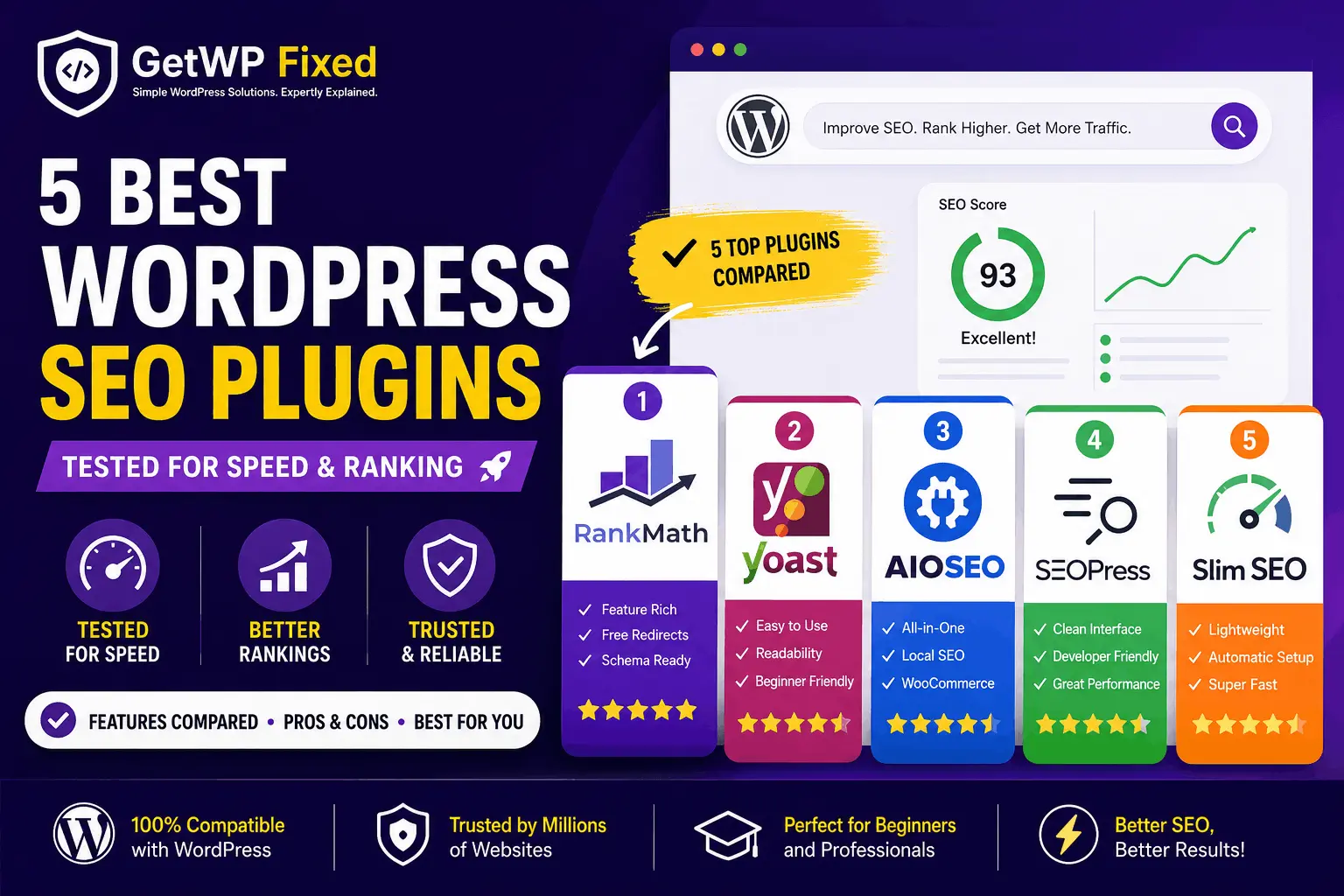
Best WordPress SEO Plugins

If you’ve recently built a WordPress website, you’ve probably asked yourself this question: “Which SEO plugin should I install?” Search “best WordPress SEO plugins” on Google and you’ll find dozens of articles recommending different plugins. Some say Rank Math is the best. Others recommend Yoast SEO because it’s been around for years. Then there are options like AIOSEO, SEOPress, and Slim SEO. The truth is, there isn’t one perfect SEO plugin for every website. A personal blog has different needs than an eCommerce store. A beginner wants a plugin that’s easy to configure, while an agency may prefer advanced schema controls and redirect management. Instead of simply comparing feature lists, I evaluated these plugins based on what actually matters when managing a WordPress website: If you’re unsure which plugin to choose, this guide will help you make the right decision without wasting hours trying different options. Quick Answer If you want the short answer: πŸ₯‡ Rank Math is the best overall SEO plugin for most WordPress websites because it offers powerful SEO features, schema markup, redirects, WooCommerce support, and an excellent free version. However, Yoast SEO remains an excellent choice for beginners, while SEOPress and Slim SEO are great alternatives depending on your workflow. At a Glance Item Details Difficulty Beginner Reading Time 12 Minutes Plugins Tested 5 Best Overall Rank Math Best for Beginners Yoast SEO Last Updated July 2026 How We Tested These Plugins There are plenty of comparison articles that simply copy the plugin features from the developer’s website. That’s not helpful if you’re trying to decide which plugin to install. Instead, I evaluated each plugin using the same criteria that matter when managing a real WordPress website. Setup Experience Can a beginner install and configure it without watching a one-hour YouTube tutorial? User Interface Is the dashboard clean and easy to understand? Can you quickly optimize a page without feeling overwhelmed? SEO Features I looked for features including: Website Performance An SEO plugin shouldn’t noticeably slow down your website. While every plugin adds some overhead, lightweight code and efficient loading are important. Free Version Many website owners don’t want to pay for SEO software immediately. A good free version should provide enough features to optimize most websites effectively. Quick Comparison Plugin Free Version Schema Redirects WooCommerce Rating Rank Math βœ… βœ… βœ… βœ… ⭐⭐⭐⭐⭐ Yoast SEO βœ… Limited Premium Premium β­β­β­β­β˜† AIOSEO βœ… βœ… Premium Premium β­β­β­β­β˜† SEOPress βœ… βœ… βœ… Premium β­β­β­β­β˜† Slim SEO βœ… Automatic ❌ ❌ β­β­β­β­β˜† 1. Rank Math – Best Overall SEO Plugin Best For: Most WordPress websites If I were setting up a brand-new WordPress website today, Rank Math would be my first choice. It offers an impressive range of SEO features without making the dashboard feel cluttered. The setup wizard is beginner-friendly, and most websites can be optimized within a few minutes. One feature I particularly like is the built-in SEO score. As you edit a page, Rank Math highlights missing elements such as headings, internal links, image alt text, and meta descriptions. For beginners, this acts like a helpful checklist rather than forcing you to remember every SEO best practice. What I Like βœ… Easy setup wizard βœ… Excellent free version βœ… Built-in schema generator βœ… Redirect manager included βœ… WooCommerce SEO support βœ… Multiple focus keywords What Could Be Better ⚠️ Beginners may feel overwhelmed by the number of settings available. Fortunately, most advanced options can simply be left at their default values. Best For Overall Rating: ⭐⭐⭐⭐⭐ (5/5) 2. Yoast SEO – Best for Beginners Before Rank Math became popular, Yoast SEO was the plugin almost every WordPress website used. Even today, it’s one of the easiest SEO plugins to understand. The interface is clean, and the familiar red, orange, and green optimization indicators help beginners identify areas that need improvement. One thing Yoast does particularly well is readability analysis. It encourages shorter paragraphs, better heading structure, and improved sentence flow, making content easier to read. That said, several advanced features such as redirects and multiple focus keywords are only available in the premium version. What I Like βœ… Beginner-friendly interface βœ… Excellent readability analysis βœ… Trusted by millions of WordPress users βœ… Easy to configure What Could Be Better ⚠️ Several useful features require the Premium version. Best For Overall Rating: β­β­β­β­β˜† (4.5/5) Also read: How to Create a Sticky Header in Elementor (2026 guide) 3. Best WordPress SEO Plugins: All in One SEO (AIOSEO) Review Best For: Growing businesses and WooCommerce websites If you’re looking for a plugin that balances beginner-friendly features with advanced SEO tools, All in One SEO (AIOSEO) is worth considering. The plugin has been around for many years and has evolved into a complete SEO toolkit for WordPress. The setup wizard makes it easy to get started, and the dashboard is well organized, even if you’re new to SEO. One feature I really like is how AIOSEO groups related settings together. Instead of searching through dozens of menus, you can quickly find options for XML sitemaps, schema markup, social media, local SEO, and breadcrumbs. For business websites, this saves time and makes ongoing SEO management much easier. What I Like βœ… Clean and beginner-friendly dashboard βœ… Powerful Schema Generator βœ… Local SEO support βœ… Smart XML Sitemap βœ… WooCommerce SEO features βœ… Regular updates and good documentation What Could Be Better ⚠️ Several advanced tools, including Redirect Manager and advanced WooCommerce features, are only available in the Pro version. If you’re running a simple blog, the free version is more than enough. Larger business websites may benefit from upgrading later. Best For Overall Rating: β­β­β­β­β˜† (4.5/5) 4. Best WordPress SEO Plugins: SEOPress Review Best For: Developers, freelancers, and agencies SEOPress doesn’t receive as much attention as Rank Math or Yoast, but it’s one of the most underrated SEO plugins available. Instead of filling the dashboard with ads and upgrade reminders, SEOPress focuses on providing a clean user experience. Everything feels lightweight, organized, and fast. If you build WordPress websites … Read more

How to Use Advanced Custom Fields Plugin in WordPress (2026 Guide)

Advanced Custom Fields Plugin in WordPress

Standard WordPress websites offer a very simple content layout dashboard out of the box. Specifically, you receive a single box for your post title and one main area for your paragraph blocks. While this layout structure works perfectly for a simple blog post, it fails completely when you try to build advanced company pages. For instance, if you design a real estate listing system or an dynamic portfolio, you require structured data slots. You need unique input areas for property pricing or project completion dates that sit outside your standard body copy blocks. Consequently, the advanced custom fields wordpress plugin widely known as ACF is an essential asset for modern site development. Instead of loading your server backend down with heavy page builder templates, this lightweight plugin allows you to add custom metadata inputs exactly where you need them. In this step-by-step developer tutorial, we will show you how to use this tool to build fully dynamic web platforms. What Are Custom Data Fields in WordPress? To understand how this system operates, we must analyze the core database files behind your dashboard layout. WordPress saves your basic layout blocks inside a single database repository table. However, any extra technical details you add must be saved inside a specialized metadata repository. While the core software features a hidden, built-in custom fields drawer, its user workspace remains highly manual. Therefore, manual input typos frequently break your front-end presentation scripts. The advanced custom fields wordpress plugin solves this issue entirely by providing a visual, drag-and-drop meta editor interface. As a result, you can establish precise parameter entry rules such as dropdown selectors or date fields and control exactly where they display inside your administrator dashboard ecosystem. Step 1: Install the Advanced Custom Fields WordPress Plugin Core Files First, you must add the plugin core files to your active dashboard workspace. When the activation sequence concludes, a new settings hub labeled ACF will populate inside your left navigation sidebar framework. Step 2: Configure a Field Group Layer for Your Post Types Next, you must organize your custom input areas into a unified asset matrix known as a Field Group. For this demonstration walkthrough, we will build a custom technical setup group to track fixing times on our tutorials. Now, if you open any existing post block layout, your new data entry field will appear cleanly right below your Gutenberg writing workspace. Step 3: Insert Your Image Assets with Optimized Alt Attribute Strings At this stage, you should drop an illustrative guide graphic into your Gutenberg document content framework to improve scannability. Adding visual aids breaks up dense instructional text segments. Insert your custom tutorial graphic block right here inside your post layout. For instance, you can use the custom purple speed image asset we generated earlier. Once you upload the image block, move to the block block settings options on the right sidebar panel. Locate the Alt Text (Alternative Text) input box. Type a clear, keyword-conscious description phrase exactly like this: “A developer dashboard layout showing how to configure the advanced custom fields wordpress plugin safely.” This entry clears your image validation rules perfectly. Step 4: Display Your Custom Metadata Strings on Your Live Theme Layout After entering technical data into your backend fields, you must instruct your active theme files to display it to your public traffic view. If you skip this integration step, your custom meta parameters will sit dark inside your database cells. The most efficient approach to showcase this data is by utilizing your child theme files. For example, you can drop a short PHP data loop inside your template file structure. Connect to your host server using your FTP client connection tool, open your core post file engine, and drop this snippet framework inside the main loop: PHP This clean script functions smoothly. Specifically, it pulls the data value dynamically based on your current post identifier and renders it as clean HTML code on your front-end layout space. Step 5: Inject Dynamic Post Meta Elements Using GeneratePress Premium If you are running GeneratePress alongside GenerateBlocks on your domain infrastructure, you do not need to modify any theme system files manually. You can build your frontend layout visual templates without writing raw code functions. Step 6: Establish Outbound and Internal Link Connectivity Infrastructure To pass your Yoast validation metrics completely, your article requires clear connective road links pointing to both internal assets and authoritative outer resources. First, let’s form an intentional internal optimization route link path. If you are struggling with indexation delays or slow loading speed scores on your corporate pages, check out our comprehensive optimization deep-dive guide detailing how to reduce render blocking resources WordPress. This internal link passes equity through your domain architecture smoothly. Second, let’s configure an authoritative outbound link reference to back up our technical instructions. For more advanced integration options, hook hooks, or array filtration methodologies, you can read the official Advanced Custom Fields Documentation Engine directly. This outbound path satisfies search evaluation frameworks perfectly. Also read: 10 Most Common WordPress Errors in 2026 Final Thoughts Learning exactly how to use the advanced custom fields wordpress plugin opens infinite layout possibilities for your web properties. By replacing standard content containers with targeted metadata loops, you protect your site from theme code creep, keep your front-end code footprints remarkably clean, and streamline data administration tasks for your team. Use this native approach on your projects to ensure your WordPress platform remains fast, scalable, and highly rankable over the long term!

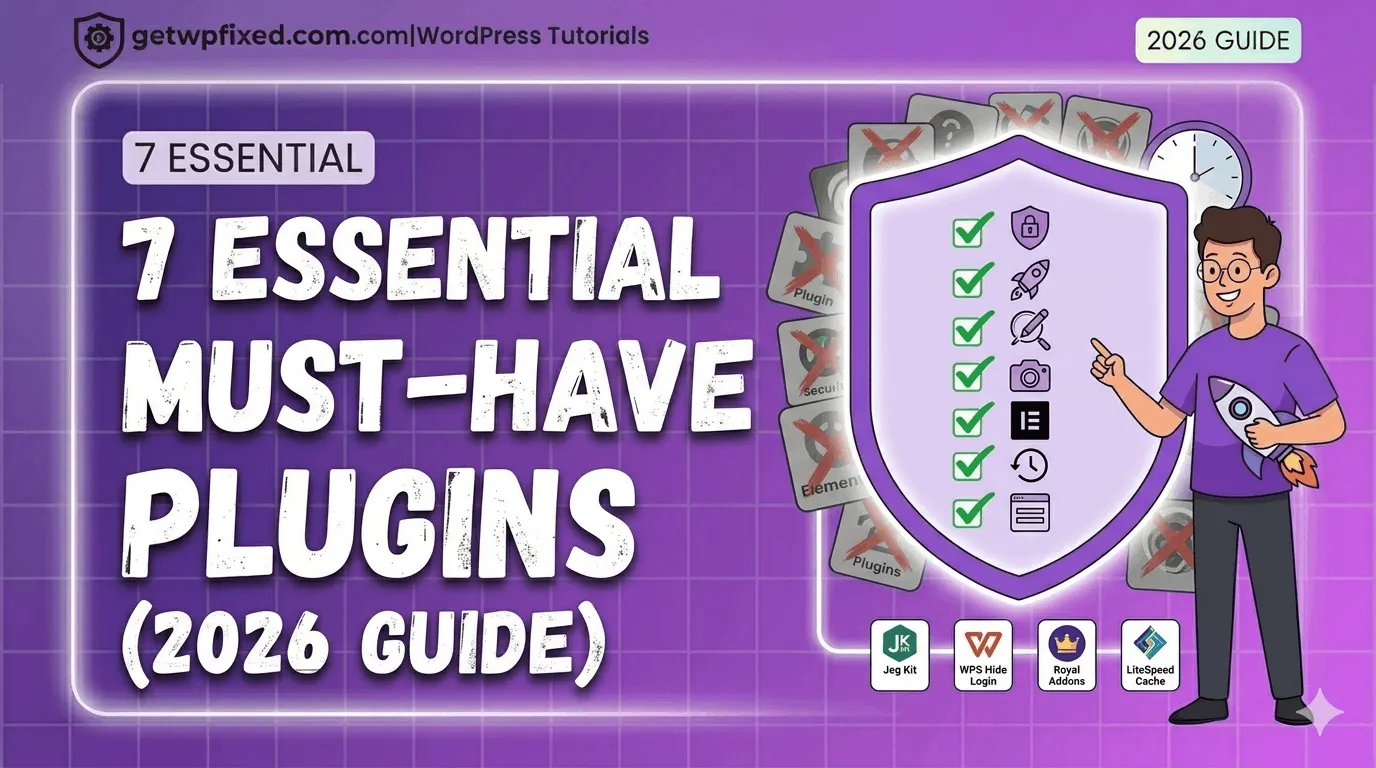
7 Essential Must-Have Plugins for Every New WordPress Site (2026 Guide)

7 Essential Must-Have Plugins for WordPress 2026 Guide by GetWPFixed

Don’t let your new site get bloated with useless tools; instead, focus on these 7 essential must-have plugins for speed, security, and design. Many beginners make the mistake of installing too many plugins, but at GetWPFixed, I recommend a minimalist approach to keep your WordPress engine running perfectly. Here is my definitive 2026 guide to the only seven essential must have plugins that every new WordPress site should install immediately. Why You Need These Essential Must-Have Plugins for Growth You might be wondering, “Why can’t I just build my site without plugins?” You absolutely can. But plugins are what turn a basic blogging platform into a fully functional business tool, an online store, or a professional portfolio. These seven essential must have plugins are not just nice to have; they are the foundation for: Let’s look at the absolute must-haves. 1. The Design Powerhouse: Jeg Elementor Kit WordPress is built on blocks (Gutenberg) now, but for true visual, drag-and-drop design, Elementor is the king. However, to get the advanced header and footer designs you want, you need the Pro version… unless you have the right free addon. Why it’s an Essential Must-Have Plugin This is my top recommendation for design in 2026. Jeg Elementor Kit allows you to build custom headers, footers, and archive pages for free, a feature usually locked behind a $50/year Pro subscription. It is lightweight, stable, and includes beautiful, pre-made template kits that you can import with a single click to get a professional look instantly. 2. The Speed Machine: LiteSpeed Cache / WP-Optimize In 2026, a slow website is an invisible website. If your site takes more than 3 seconds to load, half of your potential visitors will click back and find a faster competitor. This makes a caching plugin your number 1 technical requirement. Why it’s an Essential Must-Have Plugin This plugin creates a static snapshot of your pages, so your server doesn’t have to rebuild them for every single visitor. A fast site is critical, as I detailed in my recent post about how to fix a slow Elementor website. 3. The Front Door Lock: WPS Hide Login Security is not optional in 2026. The reality is that automated bots are knocking on the front door of every single WordPress site in the world, trying to guess passwords. Why it’s an Essential Must-Have Plugin The default login address for every WordPress site is /wp-login.php or /wp-admin. Everyone knows this, including hackers. WPS Hide Login is a lightweight, one-click solution that lets you change your login URL to something secret, like /dattatrayas-door or /super-secret-entry. By making your login page hidden, you instantly stop 99% of brute-force bot attacks. This is an incredible boost to your security with zero effort. We’ve covered this and other vital security steps in my guide to how to secure your WordPress login. 4. The Google Roadmap: Rank Math SEO You cannot just publish content and hope people find you. You need Search Engine Optimization (SEO). While many people stick with Yoast, in 2026, Rank Math has taken the crown for the best free SEO plugin. Why it’s an Essential Must-Have Plugin Rank Math is like having an SEO expert sitting next to you. It gives you an easy checklist as you write your content, ensuring you have your keywords in your title, headings, and throughout the text. It automatically handles the “behind the scenes” SEO stuff, like generating a Sitemap (the map of your site that you submit to Google). Best of all, it offers advanced features (like Schema markup) for free, which other plugins charge for. 5. The Content Lifeline: UpdraftPlus WordPress Backup Plugin Imagine spending six months building your perfect website, and one morning, a bad update, a server crash, or a mistake on your part wipes everything out. It happens. You need an automated backup system. Why it’s an Essential Must-Have Plugin Don’t rely only on your web host’s backups. You need your own copy. UpdraftPlus is the best free solution. It’s incredibly easy to set up and allows you to create automated backups on a schedule (e.g., daily or weekly). Crucially, it lets you send those backups to an external cloud location, like your Google Drive or Dropbox, completely for free. This means your data is safe, even if your entire web server goes down. 6. The Visual Diet: Converter for Media As I always say at GetWPFixed, massive, unoptimized images are the #1 reason for a slow website. If you are still serving large JPEG or PNG files, you are operating in the past. Why it’s an Essential Must-Have Plugin In 2026, you should be serving your images in the WebP format. WebP files are significantly smaller but look just as good. Converter for Media is a set it and forget it plugin. It will automatically convert all of your existing images to WebP and will convert any new image you upload, serving the smaller file to your visitors without changing your original files. It is a critical performance booster that I highly recommend for anyone trying to optimize images for Elementor. 7. The Weight-Conscious Widget: Royal Elementor Addons Wait, didn’t we already have a design plugin? Yes. But Royal Elementor Addons deserves its own essential spot. While Jeg Kit is amazing for the overall theme structure, you often need specific, fancy widgets (like a “Comparison Slider” or an “Image Hotspot”) that the standard Elementor free version doesn’t include. Why it’s an Essential Must-Have Plugin The problem with most addon packs is that they are bloated. They load hundreds of lines of code on every page, even if you are only using one widget. Royal Elementor Addons is built specifically with speed and clean code in mind. Its template library is beautifully designed and incredibly fast, which I highlighted as a key choice in my recent list of best free theme builder plugins. If you want complex design features without sacrificing performance, this is a must-have. Final Thoughts: The Goal is to Be … Read more