
There is nothing quite as frustrating as opening your website only to be greeted by a blank white screen and a single sentence: “Error establishing a database connection.”
For any website owner, this message is an instant source of panic. It means your website is completely offline, your visitors cannot access your content, and your business is grinding to a halt.
To fix this issue, it helps to understand how your website works behind the scenes. WordPress is split into two main parts: your core files (which control your design and functionality) and your database (which stores all your actual data, like posts, pages, and user settings). When these two parts cannot talk to each other, your site completely breaks down.
The good news is that this problem is incredibly common, and it is entirely fixable. In this comprehensive guide, we will look at exactly what causes an error establishing a database connection in WordPress and walk through five practical ways to restore your site safely.
What Causes This Connection Error?

Before diving into the technical fixes, let’s look at why the connection dropped in the first place. Pinpointing the root cause will help you apply the correct solution faster. Generally speaking, the connection breaks due to one of four main reasons:
- Incorrect Login Credentials: This is the most common culprit. If you recently migrated your website, changed web hosts, or updated your database user settings, the login details stored in your system files no longer match your actual server.
- Corrupted Database Tables: Sometimes, a database table becomes corrupted due to a sudden server crash, a poorly coded plugin update, or a malicious script injection. When a vital table gets scrambled, the system fails to load.
- Overwhelmed Hosting Server: If your website experiences a sudden surge in traffic, your hosting server might run out of memory or processing power. A budget hosting package can easily choke under a wave of concurrent traffic requests, causing the database server to go responsive.
- Responsive Database Server Faults: In some cases, your database server is entirely separate from your web server. If your web hosting provider is experiencing an internal outage or physical hardware maintenance on their MySQL or MariaDB machines, your site will lose its connection.
Now that we know what we are dealing with, let’s step through the troubleshooting process to get your site back online.
Step 1: Check if the Error Happens on Your WP-Admin Dashboard
The very first diagnostic step you should take is checking whether the error message is identical across your entire website.
Open a new browser tab and try to log into your admin dashboard by adding /wp-admin to the end of your domain name. Look closely at what displays on your screen:
- Case A: If you see the exact same “Error establishing a database connection” message on the login screen, your credentials or your server environment are likely broken. Skip down to Step 2.
- Case B: If you see a completely different message, such as “One or more database tables are unavailable. The database may need to be repaired,” it means your actual data structure is corrupted.
Also read: How to Fix WordPress Cron Errors and Eliminate the 403 Forbidden Blocker
If you are dealing with Case B, WordPress has a hidden, native repair utility built into its core files that can fix this automatically. To activate it, you will need to access your website’s root folder using an FTP client like FileZilla or the File Manager inside your web hosting control panel (like cPanel or hPanel).
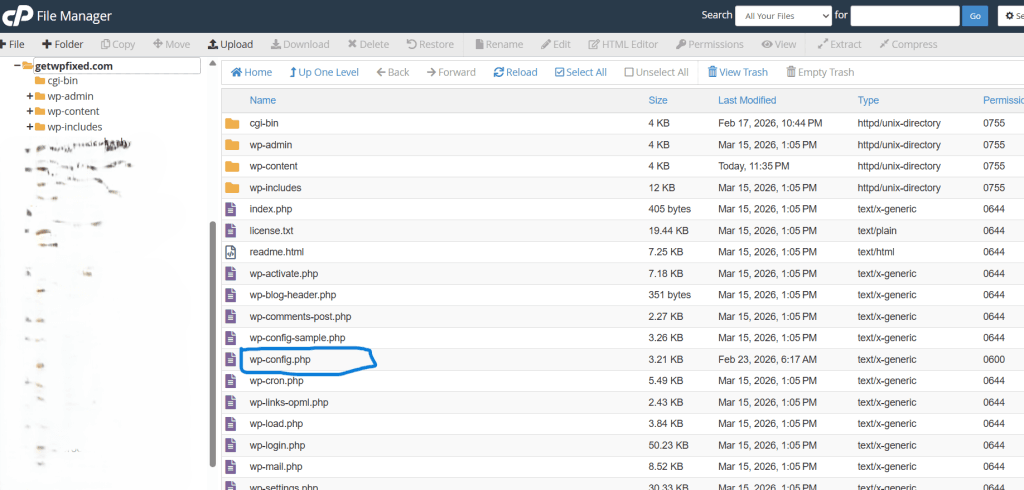
Once you are inside your root directory, locate your wp-config.php file. Open it with a text editor, scroll down toward the bottom, and paste this exact line of code right above the line that reads /* That's all, stop editing! Happy publishing. */:
PHP
define( 'WP_ALLOW_REPAIR', true );
Save your changes and upload the file back to your server. Now, open your browser and navigate to this specific URL (replacing yourdomain.com with your actual website link):
[https://yourdomain.com/wp-admin/maint/repair.php](https://yourdomain.com/wp-admin/maint/repair.php)
This will launch a simple, hidden optimization dashboard. Click the button that says “Repair and Optimize Database.” WordPress will scan your tables, realign any broken structural elements, and attempt to fix the corruption automatically.
⚠️ Important Security Note: The moment your website is successfully restored, go back into your wp-config.php file and completely delete that line of code. Leaving the repair utility active is a major security risk because anyone can access that link and put undue stress on your server.
Step 2: Verify Your Database Connection Credentials
If your admin dashboard shows the exact same connection failure as the front end of your site, the issue is almost certainly an administrative mismatch inside your configuration files.
WordPress requires four specific pieces of information to access your server rows. If even a single character, capital letter, or special symbol is wrong, the connection will drop instantly. Open your wp-config.php file again and locate the following four definitions:
PHP
// The name of the database for WordPress
define( 'DB_NAME', 'your_database_name' );

// MySQL database username
define( 'DB_USER', 'your_database_user' );

// MySQL database password
define( 'DB_PASSWORD', 'your_database_password' );

// MySQL hostname
define( 'DB_HOST', 'localhost' );
Now, keep this file open and log into your web hosting account in a separate window. Navigate to the MySQL Databases section of your hosting dashboard.
You need to cross-check these values manually:
- DB_NAME: Look at the list of active databases on your host. Does it match the value in your file character-for-character? Note that many hosts prepend a prefix to the name (e.g.,
user123_wpdb). You must include the full name. - DB_USER: Check the assigned user linked to that specific database. Ensure the username matches your file exactly.
- DB_PASSWORD: Because you cannot see passwords in plain text inside your hosting panel, the safest route is to click Change Password or Manage User on your host dashboard. Create a fresh, strong password, assign it to the user, and paste that new password directly into your
wp-config.phpfile. - DB_HOST: For the vast majority of web hosts (like MilesWeb, Hostinger, or Bluehost), this value should remain
'localhost'. However, some managed hosts or cloud providers use a specific IP address or an external server URL string. Check your hosting support documentation to see if they require a unique hostname value.
Once you have meticulously verified these values, save your file and refresh your website. If a credential typo was the cause, your site will load instantly.
Step 3: Check with Your Web Hosting Provider (Server Overload)
If your credentials are correct and your tables are healthy, the issue might be completely out of your hands. Your hosting server itself might be struggling.
When a website receives a massive surge in traffic, or if another site on a shared server is hogging all the available system resources, the database service (MySQL or MariaDB) can crash.
To check if this is happening:
- Try logging into your hosting dashboard and accessing phpMyAdmin. If phpMyAdmin opens smoothly and you can see your tables, your database server is up and running. The problem might be a temporary code conflict on your site.
- If you click phpMyAdmin and receive a timeout or a “Connection Refused” error from the host itself, the database server is completely offline.
When this happens, your best option is to contact your web hosting company’s support team immediately. Open a live chat ticket and tell them: “My site is showing an error establishing a database connection, and the MySQL service appears to be down in my panel.” They will be able to reboot the SQL service or allocate more memory headroom to your account to bring it back online.
Also Read: How to Fix WordPress Critical Error & White Screen (2026 Guide)
Step 4: Fix Corrupted Core WordPress Files or Theme Conflicts
On rare occasions, deep core file corruption or an aggressive script conflict can cause a breakdown in communication between WordPress and your database. This frequently happens after an interrupted automated background update or a malware injection.
If you suspect this is the case, you can rule out a plugin or theme conflict by using FTP or your File Manager to rename your active folders.
- Navigate to the
/wp-contentfolder inside your root directory. - Locate the folder named
pluginsand temporarily rename it toplugins_old. This will safely deactivate every single plugin on your site without losing any data. - Check your website. If it suddenly loads, a plugin query was crashing your database. You can rename the folder back to
pluginsand turn them on one by one to find the broken script.
If that doesn’t fix it, your core system files might be damaged. You can easily replace them without touching your content:
- Download a fresh copy of WordPress from the official WordPress.org repository.
- Unzip the file on your computer and delete the folder named
wp-contentand thewp-config-sample.phpfile from the downloaded bundle. (You do not want to overwrite your actual content or configuration). - Upload the remaining fresh core files via FTP to your server, overwriting your old files. This will replace any corrupted core assets while leaving your themes, plugins, and uploads completely untouched.
Conclusion
Encountering an error establishing a database connection in WordPress can feel intimidating, but running through these clear steps will resolve the vast majority of cases. By logically checking your error display, auditing your configuration credentials, checking server uptimes, and ensuring your data tables aren’t corrupted, you can systematically pinpoint the issue and bring your site back online safely.
Regular maintenance, choosing a high-quality hosting provider, keeping your PHP versions updated, and taking routine automated backups will ensure your database remains protected against future unexpected crashes.