Dattatraya Harchekar, Author at Get WPFixed - Page 3 of 3

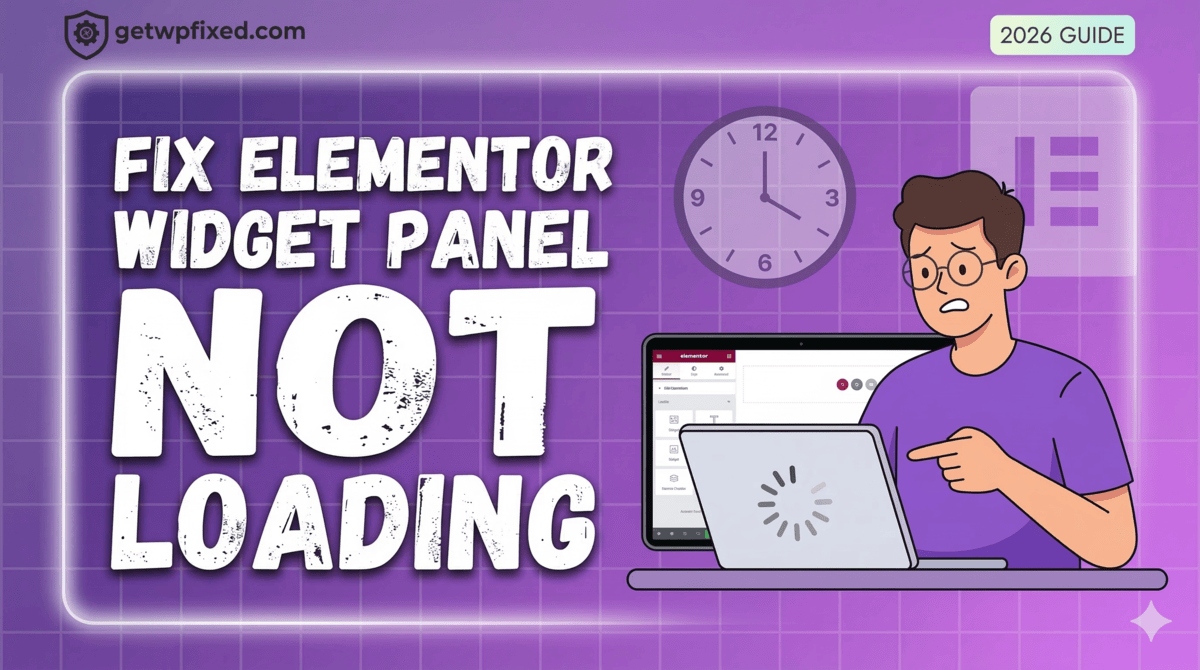
Fix Elementor Widget Panel Not Loading (2026 Guide)
Fixing the Elementor widget panel not loading error

There is nothing quite like the “design flow.” You’ve got your coffee ready, you’ve got a vision for your landing page, and you click “Edit with Elementor”—only to be met with that endless grey loading circle in the widget panel. It’s frustrating, it’s a time-waster, and honestly, it happens to the best of us. At GetWPFixed, I’ve spent countless hours troubleshooting this exact issue. The good news? Your site isn’t broken. Usually, it’s just a case of your server or a rogue plugin being a bit “stubborn.” Let’s get it fixed so you can actually get some work done. The Most Common Culprit: Memory Limits Think of Elementor as a heavy-duty power tool. If your hosting server is only giving it a tiny “battery” (PHP Memory), it’s going to struggle to start. Most hosting providers set the default limit to 128MB or 256MB. For a smooth Elementor experience, you really want that at 512MB. You can usually fix this by adding a single line to your wp-config.php file: define(‘WP_MEMORY_LIMIT’, ‘512M’); (If you aren’t comfortable touching code, just ask your host’s support to “increase the PHP memory limit to 512″ and they’ll do it in two minutes.) Try the “Safety Switch” Elementor actually knows that some servers are a bit picky about how they load data. Because of this, they’ve built in a “Switch Editor Loader Method.” I’ve seen this solve the loading issue about 40% of the time. Just head over to Elementor > Settings > Advanced and toggle that switch to Enable. It changes how the editor requests data and often bypasses the hang-up entirely. The “One by One” Plugin Test I know, I know—nobody likes doing this. But if the two steps above didn’t work, you likely have a plugin conflict. Disable everything except Elementor. If the panel loads, you know the “villain” is one of your other plugins. Turn them back on one at a time until the loading circle returns. Once you find the one causing the clash, see if there’s an update available or look for an alternative. Still Stuck? Sometimes it’s as simple as your browser being tired. Try opening your site in an Incognito/Private window. If it loads there, you just need to clear your browser cache and you’re good to go. Drop a comment below if you’re still seeing that spinning circle—I’d love to help you figure it out! FAQ Will I lose my design if I increase memory? No, increasing memory only gives your site more power to load the editor; it won’t change your content. Is this a bug in Elementor? Not necessarily. It’s usually just a handshake issue between your server and the software.
How to Increase WordPress Maximum Upload Size in 2026 (Working Fix)

Increase Maximum File Upload Size in WordPress

⚠️ SAFETY FIRST: Before making any technical changes or editing your site’s code, please ensure you have a full backup of your website and database. If you aren’t comfortable editing files, consider using a staging site first. Need professional help? [Contact Us]. If you are looking to increase maximum file upload size in WordPress in 2026 , you’ve likely run into the frustrating ‘upload_max_filesize’ error. By default, many hosting providers set this limit as low as 2MB or 8MB—which is barely enough for a single high-resolution photo today. The Symptom: What are you seeing? When you go to Media > Add New, you will see a small text label that says: “Maximum upload file size: 2 MB.” If your file is even 0.1KB over that limit, WordPress will block the upload and show a red error bar. The Quick Fix (1-Minute Solution) If you have a modern host with cPanel or Plesk, don’t touch any code yet! 5 Proven Methods to Increase Maximum File Upload Size in WordPress. If the Quick Fix didn’t work, one of these technical methods will. We have ranked them from easiest to most advanced. Method 1: The functions.php Method (Theme Level) This is the easiest way to tell WordPress to request more “room” from the server. PHP @ini_set( ‘upload_max_size’ , ’64M’ ); @ini_set( ‘post_max_size’, ’64M’); @ini_set( ‘max_execution_time’, ‘300’ ); Method 2: The .htaccess Method (Apache Servers) If you are on shared hosting (Bluehost, BigRock, MilesWeb etc.), your .htaccess file usually controls these rules. Plaintext upload_max_filesize = 64Mpost_max_size = 64Mmemory_limit = 256M Method 3: The php.ini or .user.ini Method Some hosts require a dedicated configuration file in your root folder. Plaintext upload_max_filesize = 64M post_max_size = 64M memory_limit = 256M Method 4: The wp-config.php Method While less common for upload sizes specifically, increasing your WP Memory Limit often fixes the “timeout” errors that happen during large uploads. PHP define(‘WP_MEMORY_LIMIT’, ‘256M’); Prevention: How to avoid this in the future Still Stuck? Sometimes, no matter what you code, the hosting provider hard-locks these limits. If you’ve tried all four methods and your limit is still 2MB, it’s time to contact your host’s support or Let GetWpFixed handle it for you. Next Post:How to Fix a Slow WordPress Website: The Ultimate 2026 Speed Guide

How to Fix a Slow WordPress Website: The Ultimate 2026 Speed Guide

How to Fix a Slow WordPress Website.png

We’ve all been there: you click a link, the browser tab spins, and… nothing. In 2026, if your site keeps people waiting for more than two seconds, they aren’t just annoyed—they’re gone. Learning how to fix slow WordPress website performance isn’t just a technical “nice-to-have” anymore; it’s a requirement for staying visible on Google and keeping your readers engaged. With Google’s latest focus on Interaction to Next Paint (INP) and Largest Contentful Paint (LCP), “fast enough” is a relic of the past. If you’re tired of watching your traffic bounce because of lagging page loads, here is the exact blueprint I use to clear out bottlenecks and get WordPress sites back into the fast lane. 1. Start With a Real-World Speed Audit Before you start toggling settings, you need to know what’s actually broken. While a 0–100 score on Google PageSpeed Insights or GTmetrix looks nice, it isn’t the whole story. 2. Stop Sabotaging Yourself with Cheap Hosting You can’t fix slow WordPress website issues if your foundation is shaky. If you’re still paying $3/month for bottom-tier shared hosting, your Time to First Byte (TTFB) will always be your Achilles’ heel. In 2026, your host should provide PHP 8.3+, NVMe SSD storage, and HTTP/3 support as standard. If they don’t, it might be time to move to a managed provider like Hostinger or MilesWeb or a LiteSpeed-powered server for better native caching. 3. Image Optimization: It’s Not Just About Size Anymore Big images are still the #1 killer of LCP scores, but compression is only half the battle. 4. Be Ruthless With Your Plugins Every plugin you install adds a new layer of code for the browser to chew through. 5. Advanced Caching: Moving Beyond the Basics Caching essentially turns your “active” WordPress site into a static file that loads instantly. For 2026, standard page caching isn’t enough. You need Object Caching (like Redis or Memcached). This allows your server to store database results in the RAM, meaning it doesn’t have to “think” every time a visitor clicks a post. 6. Clean Up Your Technical Debt (CSS & JS) Clutter often hides in your code. Using a tool like WP Rocket or FlyingPress, you should: 7. Spring Cleaning for Your Database Over time, your database gets cluttered with “orphaned” data from old plugins and thousands of post revisions. Use WP-Optimize to prune the junk. Pro Tip: Add a line to your wp-config.php to limit post revisions to 3 or 5. Your future self will thank you. 8. Use a Global CDN If your server is in New York and your reader is in London, physical distance creates lag. Using a Content Delivery Network (CDN) like Cloudflare or Bunny.net puts a copy of your site on “edge servers” worldwide, so the distance between your data and your user is always short. FAQ: Troubleshooting Your WordPress Speed Q: Why did my site suddenly slow down? Usually, it’s a recent plugin update, a spike in “autoloaded” database data, or your host hitting a resource limit. Always check your recent changes first. Q: Can I fix my speed for free? Absolutely. If you use a LiteSpeed server, the free LiteSpeed Cache plugin is incredibly powerful. Manual image optimization and database cleaning also cost $0 but yield huge results. Q: How do I improve mobile speed specifically? Focus on reducing JavaScript execution time. On mobile, processors are weaker, so heavy scripts hit twice as hard. Also, ensure your fonts use font-display: swap so text is readable immediately.