
You run your website through Google PageSpeed Insights, hoping for a perfect green score. Instead, you are greeted by a frustrating, red warning optimization metric: “Eliminate render-blocking resources.” This is one of the most common speed bottlenecks on modern websites. When a user visits your site, their web browser reads your page from top to bottom. If it encounters a heavy script file or a massive style document sitting in your site header, it pauses everything else. It stops downloading your visible design, text, and images until that single background file finishes processing.
Consequently, your layout freezes, causing your load times to skyrocket and destroying your Core Web Vitals scores. In this comprehensive developer-vetted guide, I will show you exactly how to reduce render-blocking resources in WordPress using clean, step-by-step optimization strategies.
What Exactly Are Render-Blocking Resources?
Before we fix it, let’s look at what files trigger this error message. Render-blocking resources are almost always files ending in two specific extensions:
- .CSS (Cascading Style Sheets): These files dictate your site’s fonts, colors, spacing, and structural design grids.
- .JS (JavaScript): These scripts control interactive features like popups, slider carousels, analytics tracking, and advanced menu transitions.
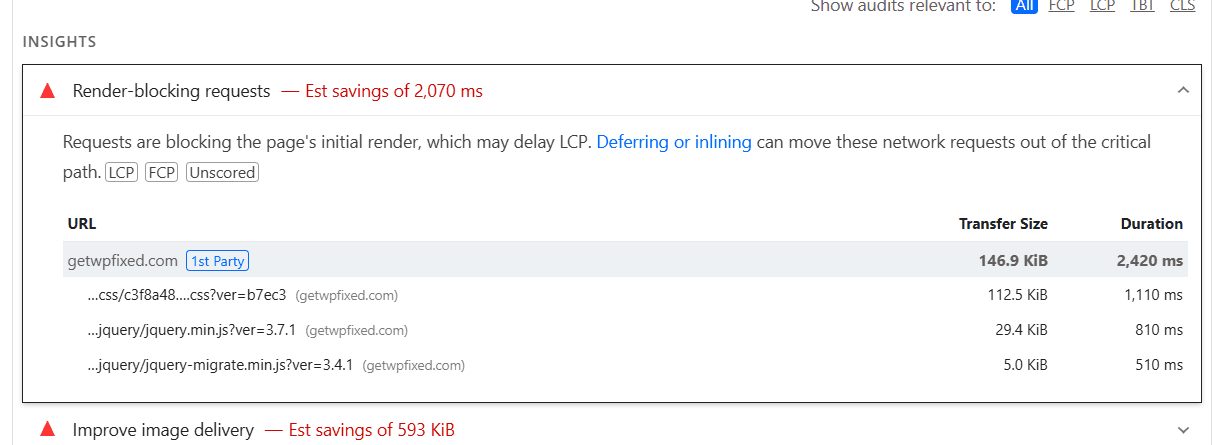
By default, themes and plugins inject these files right into the <head> tag of your website. The browser considers these files critical for displaying the page safely. Therefore, it completely blocks the visual rendering process until it downloads, parses, and executes every single one of them.
Step 1: Run a Technical Audit to Reduce Render Blocking Resources WordPress
Do not start deleting files or installing plugins blindly. Your first step is to isolate the exact scripts causing the slowdown.
- Open an incognito browser window and navigate to Google PageSpeed Insights.
- Paste your live homepage URL and click Analyze.
- Scroll down to the Opportunities section and click on the accordion tab labeled Eliminate render-blocking resources.
Plaintext
PageSpeed Insights Diagnostics Panel:
▼ Eliminate render-blocking resources
  ↳ ...wp-content/plugins/elementor/assets/css/frontend-lite.min.css
  ↳ ...wp-content/themes/your-theme/assets/js/navigation.js
Look closely at the URL strings listed in the report. They will reveal exactly which plugins or theme scripts are blocking your frontend rendering timeline.
Step 2: Use Defer and Async Attributes to Defer JavaScript in WordPress
The absolute best way to handle heavy JavaScript files is to change how the browser reads them. Instead of letting them pause the loading sequence, you can append special attributes called Defer or Async to the script tags.
- The Defer Attribute: This instructs the browser to download the JavaScript file in the background while continuing to build your visual HTML page layout. Once the page layout is completely drawn on the screen, the script executes. This is ideal for core plugin files like Elementor scripts or form handlers.
- The Async Attribute: This tells the browser to download the script in the background but execute it the exact millisecond it finishes downloading, even if the layout is still loading. This is perfect for independent, third-party tracking scripts like Google Analytics or Meta Pixels.
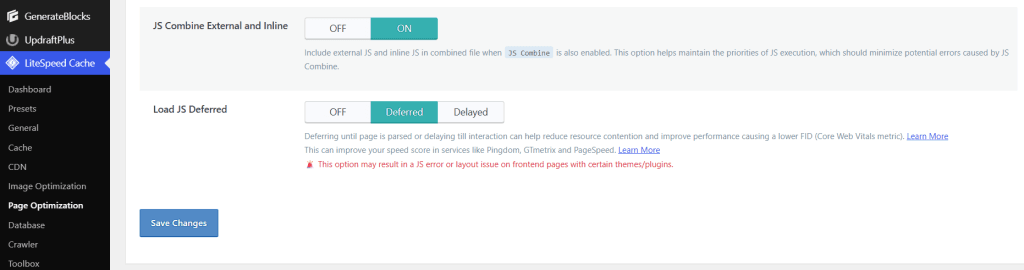
To implement this automatically without editing complex theme PHP files, install a lightweight optimization plugin like Lightspeed Cache.
Step 3: Extract and Generate Critical CSS in WordPress
Optimizing CSS is slightly trickier because if you defer your style sheets incorrectly, your visitors will experience a glitch called a Flash of Unstyled Content (FOUC). This is where your site loads for a split second as ugly, raw plain text before snapping into your gorgeous styled theme layout.
To prevent this, you must separate your CSS into two distinct buckets:
1. Extract Critical CSS
Critical CSS is the absolute minimal amount of styling required to render the top portion of your website that a user sees immediately upon landing (the “above-the-fold” area, like your header, logo, and initial heading text). You must instruct your site to inline this specific code directly into the HTML document so it loads instantly.
2. Defer Non-Critical CSS
Any style sheet governing parts of the page lower down such as your footer styles, comment boxes, or portfolio grids should be delayed and loaded only after the primary layout renders.
Modern caching plugins handle this complex splitting process automatically with a single toggle switch labeled “Generate Critical CSS” or “Optimize CSS Delivery.”
Step 4: Configure a Speed Plugin to Reduce Render Blocking Resources WordPress
Instead of configuring multiple independent code scripts, utilizing a unified, server-level optimization plugin will clean up your entire asset loop seamlessly.
If your website runs on a LiteSpeed Server environment (provided by top hosts like Hostinger or MilesWeb), install the free LiteSpeed Cache plugin. If you are running on an Apache or Nginx environment, premium options like WP Rocket offer fantastic optimization pipelines.
Configure these core asset optimization toggles inside your plugin settings:
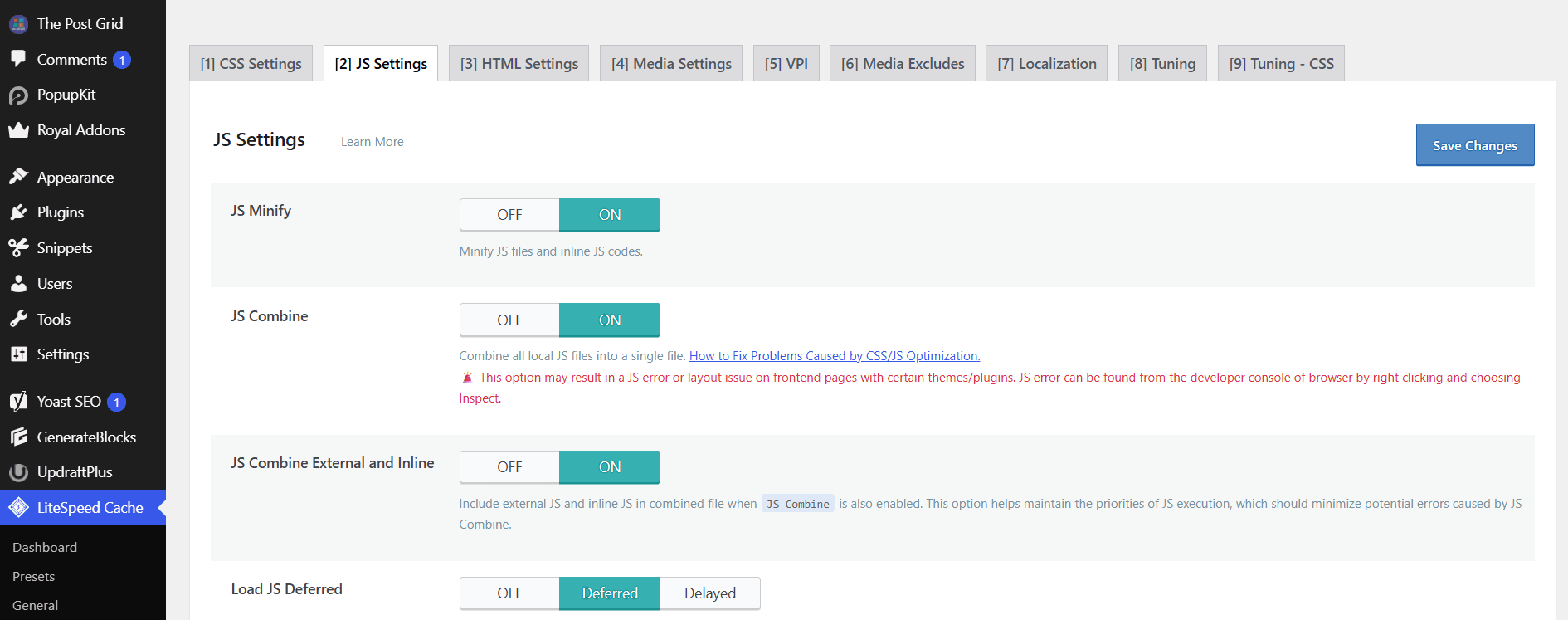
- Minify CSS & JS: This automatically strips out empty spaces, line breaks, and developer comments from your site code files, reducing their file size up to 30%.
- Combine CSS & JS: This merges dozens of independent plugin files into single, consolidated files, reducing the number of separate HTTP requests the browser has to make.
- Delay JavaScript Execution: This is a powerful feature that completely stops non-essential scripts from loading until your visitor physically moves their mouse, touches a screen, or scrolls down your layout.
Step 5: Audit Active Code to Remove Unused CSS and JS
The ultimate cause of render-blocking script bloat is plugin accumulation. Every time you install a plugin to add a tiny visual feature, that plugin injects its own independent .css and .js files into your site header.
Navigate to Plugins > Installed Plugins and run a strict audit:
- Completely deactivate and delete any plugin you haven’t utilized in the last 30 days.
- Look for multi-functional alternatives. For example, instead of running three separate plugins for social sharing, a contact form, and Google Analytics tracking, choose a high-performance alternative or add lightweight code snippets manually using a tool like WPCode.
Final Thoughts
Reducing render-blocking resources in WordPress is all about organizing your site’s loading priorities. By forcing JavaScript to load in the background using Defer and Async attributes, carefully handling your CSS delivery, and utilizing robust server-level caching tools, you can completely eliminate this PageSpeed warning.
Take 15 minutes to clear out your unused plugin assets and configure your asset scripts today. Your visitors—and your search engine indexation reports—will thank you for the lightning-fast performance update!
Also read: Elementor vs. Gutenberg: Which is Faster for Business Sites in 2026?