
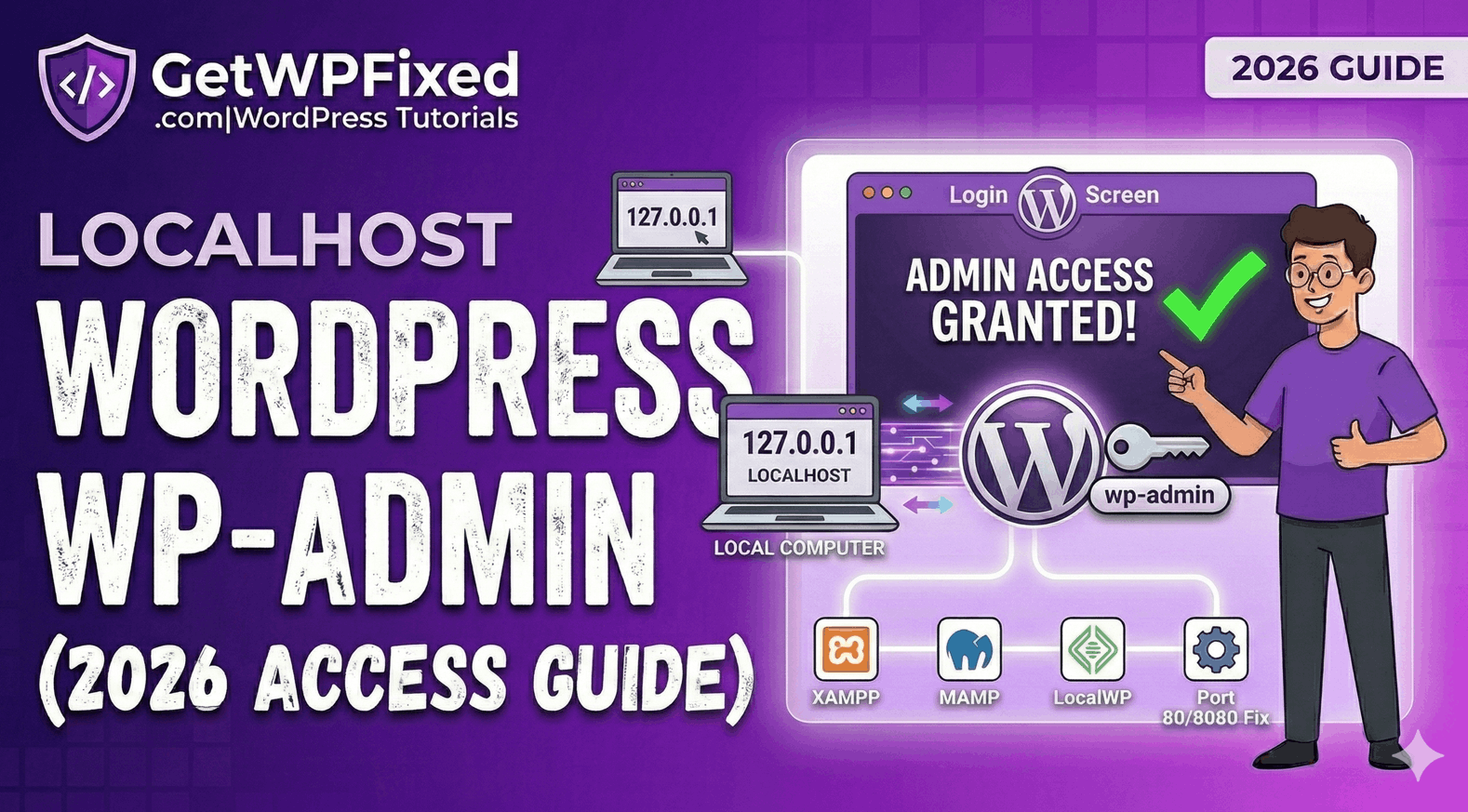
Trying to access your localhost wordpress wp admin panel only to find a ‘404 error’ or a blank screen is incredibly frustrating. Whether you are a US developer staging a new project or a student in India learning the ropes, getting back into your local dashboard is the first priority. At GetWPFixed, I’ve found that most local login issues come down to three simple technical hitches.”
Here is my 2026 checklist to get you back into your local dashboard in under 60 seconds.
1. Check Your Local URL Structure
When your site is live, it’s usually website.com/wp-admin. On a local server, the path depends on how you named your folder.
The Fix: If you are using XAMPP, your URL is likely:
http://localhost/YOUR_FOLDER_NAME/wp-admin
If you are using LocalWP, it might be a custom domain like:
http://mysite.local/wp-admin
Pro Tip: If localhost doesn’t work, try using the local IP address: http://127.0.0.1/YOUR_FOLDER_NAME/wp-admin. Sometimes the browser gets confused by the word “localhost.”
2. Solving Port Conflicts for Localhost WordPress WP Admin
If you have other software running (like Skype or a work VPN), they often “steal” the port that WordPress needs. If this happens, your localhost wordpress wp admin won’t load because the server can’t start.
The Fix: Check your server dashboard (like the XAMPP Control Panel). If you see that Apache is running on port 8080 or 8888 instead of 80, you must include that number in your URL:
http://localhost:8080/wp-admin
3. Verification in phpMyAdmin for Localhost WordPress WP Admin
If you changed your site’s folder name, WordPress might still be trying to find the old one. This is a common “Pro” level error.
The Pro Fix: 1. Open your local phpMyAdmin (usually at http://localhost/phpmyadmin). 2. Find your site’s database and open the wp_options table. 3. Look for the siteurl and home rows. 4. Ensure the path matches your current local folder exactly. If it says http://localhost/old-name, change it to http://localhost/new-name.
4. Moving from Localhost to Live
Once you finally log into your localhost wordpress wp admin and finish your masterpiece, you’ll eventually need to show it to the world. Moving a site from a local computer to a US or UK server requires careful migration to avoid “Database connection errors.”
(I’ll cover the best migration tools in my next post!)
Final Thoughts
Accessing your local dashboard should be the easiest part of your day, not the hardest. By double-checking your URL structure and port numbers, you can get back to building.
Still stuck on a “Database Connection Error” on your local machine? Tell me which local server you are using (XAMPP, MAMP, or LocalWP) in the comments and I’ll help you troubleshoot!