
There is nothing worse than opening up a client’s site and seeing a blank screen with ‘Error Establishing a Database Connection.’ I’ve run into this issue dozens of times during domain migrations and hosting cutovers.

In the UK and US, where site uptime is literally money, this isn’t just a technical glitch,it’s a business emergency. I’ve been in the trenches with these errors more times than I care to admit. At GetWPFixed, I’ve learned that while the White Screen of Death looks like the end of the world, it’s actually just WordPress protecting your database from broken code.
Here is the exact, step-by-step checklist I use to get my WordPress sites back online fast.
1. The “Ghost in the Machine”: Recovery Mode
Before you start hacking away at files, check your inbox. Modern WordPress is actually quite helpful—it usually sends an automated “SOS” email to the site admin.
The Insider Secret: Look for a link that mentions Recovery Mode. This isn’t just a login; it’s a sandbox that “sandboxes” the broken plugin, allowing you to enter the backend even when the frontend is dead. If that email hasn’t arrived after 10 minutes, move to Step 2.
2. How to Fix WordPress Critical Error Using FTP and File Manager
When you’re locked out of the house, you don’t break the door; you find a side window. FTP (or your hosting File Manager) is that window.
The Pro Move: Navigate to /wp-content/. Rename your plugins folder to plugins_debug. Refreshing your site now forces WordPress to load with zero plugins. If the site comes back (looking a bit messy), you’ve confirmed the “killer” is a plugin. I usually then rename them back one-by-one—it’s tedious, but it’s the only way to find the exact conflict without guessing.
Also Read: How to Create a Professional WordPress Website from Scratch (2026 Guide)
3. Using Debug Mode to Fix WordPress Critical Error in the Code
Stop flying blind. If you want to fix WordPress critical error problems like a senior dev, you need to see the “black box” recorder.
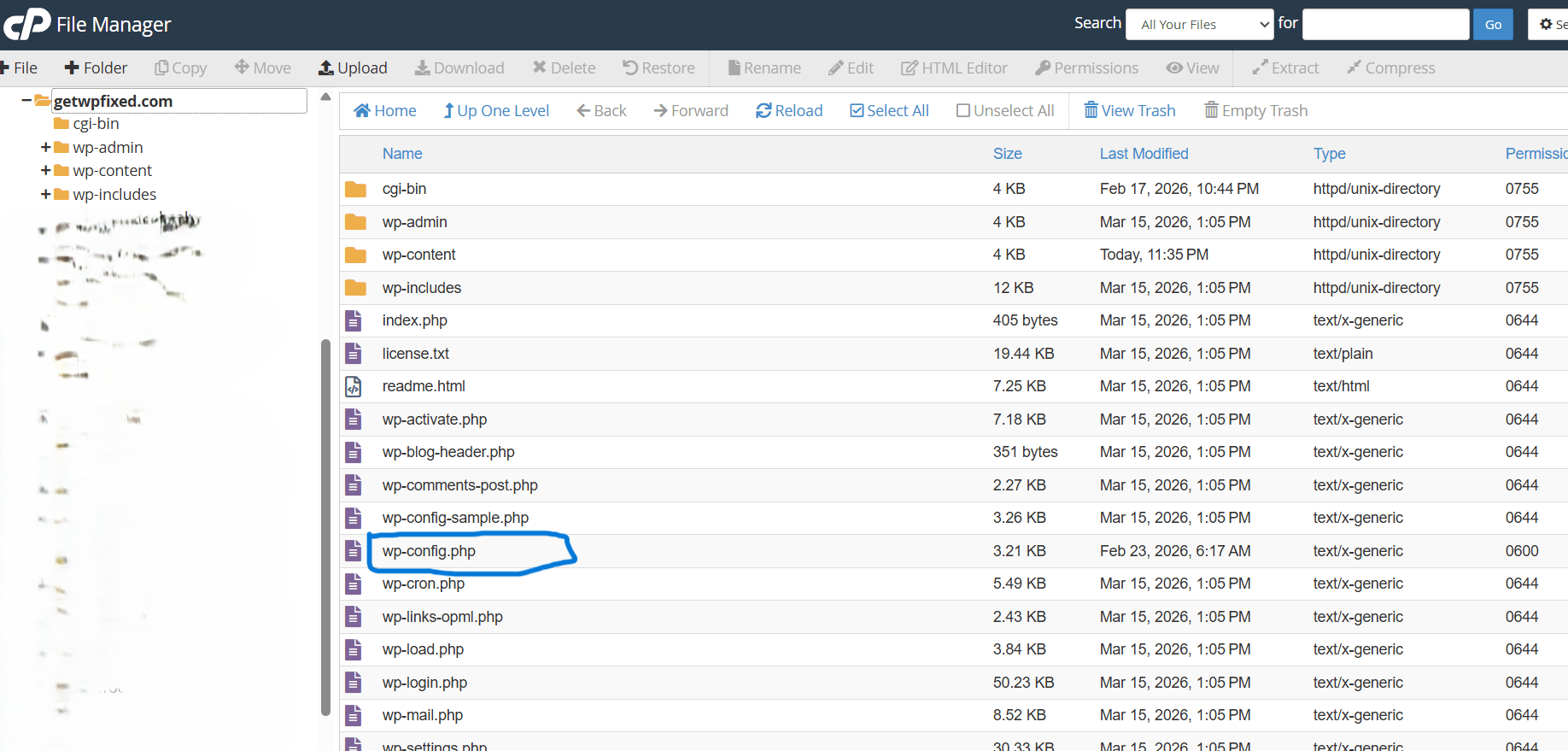
The Fix: Open your wp-config.php file. You’ll see a line for WP_DEBUG. Set it to true. Crucial Step: Add define( 'WP_DEBUG_LOG', true ); right below it. Now, WordPress will whisper its secrets into a file called debug.log in your wp-content folder. It will tell you exactly which file and which line of code caused the crash.
4. The “Memory Exhaustion” Ghost
Often, a critical error isn’t about bad code; it’s about too much code. If you’re running Elementor Pro with 20 other plugins on a cheap server, your site might simply be running out of “breath” (PHP Memory).
The Pro Fix: In your wp-config.php, add: define( 'WP_MEMORY_LIMIT', '512M' );. I’ve seen this single line of code bring “dead” sites back to life in seconds. It’s the digital equivalent of giving your site an oxygen mask.
Why Most AI-Generated Guides Fail (And Why This Works)
Most AI tools will tell you to “reinstall WordPress.” That is terrible advice. A pro knows that 99% of errors are caused by a single line of conflicting code in a plugin or theme. We don’t delete the house to fix a broken lightbulb.
Also read: How to Fix WordPress Cron Errors and Eliminate the 403 Forbidden Blocker
Final Thoughts
A critical error is a rite of passage for every WordPress owner. Once you’ve fixed your first one using FTP and Debugging, you’re no longer a beginner—you’re a site operator.
Still seeing the White Screen? Drop the last error line from your debug.log in the comments. I’ll personally look at the code and tell you which plugin to delete.