
I love Elementor, but if your pages take forever to load, you need to fix slow Elementor website performance issues immediately. It’s a common frustration: you add a few widgets and suddenly your Google PageSpeed score is in the red. At GetWPFixed, I’m all about speed, so let’s look at the deep-dive steps I use to get your site flying in 2026.
1. Using Built-In Settings to Fix Slow Elementor Website Issues
Many users don’t realize that Elementor has built-in performance “switches” that are turned off by default. Over the last year, the developers have added several “Experiments” that are now stable features.
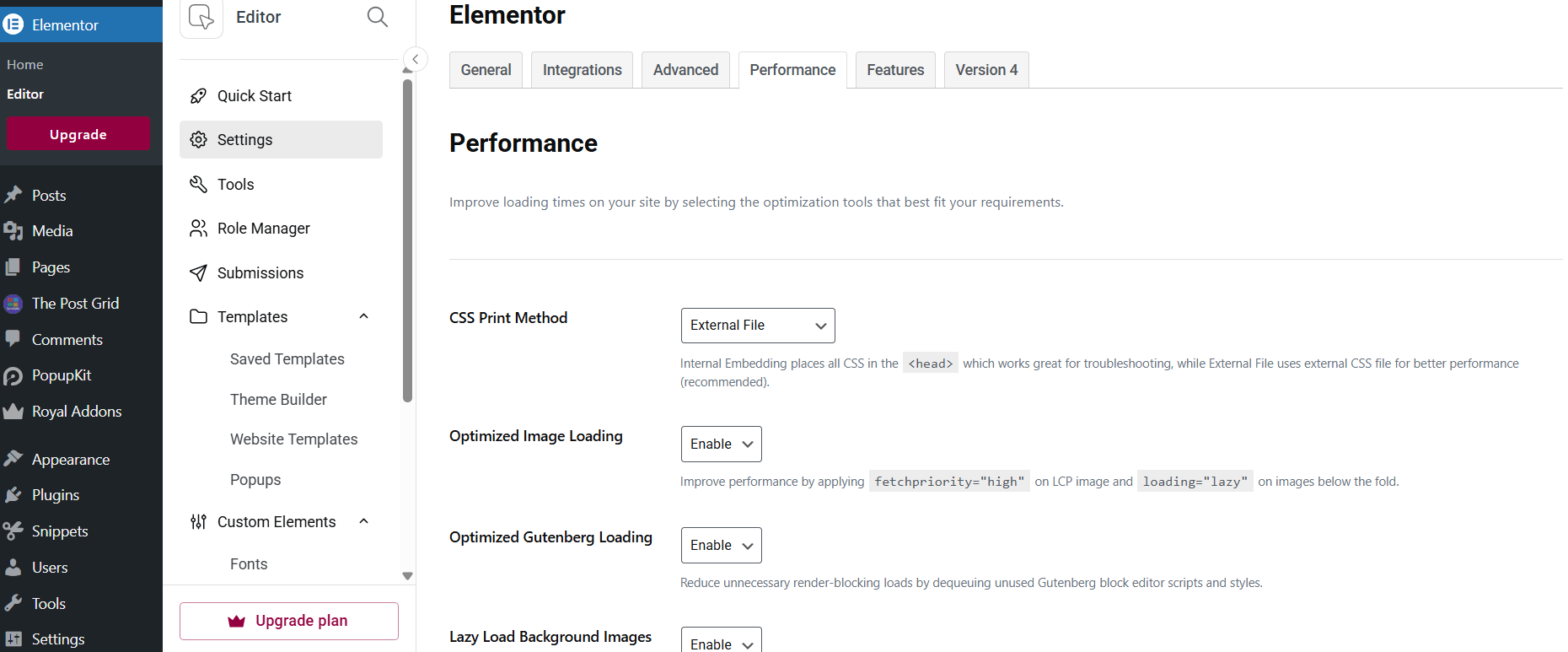
- Optimized Image Loading: Set to Enable. This automatically adds
fetchpriority="high"to your most important image (the LCP) so it loads first. - Optimized Gutenberg Loading: Set to Enable. This stops WordPress from loading block-editor code on pages where you only used Elementor. It’s a huge “code-cleaner.”
- Lazy Load Background Images: Set to Enable. This is a game-changer. It stops background images from loading until the user actually scrolls down to see them.
- Load Google Fonts Locally: Set to Enable. This is vital. Instead of “calling” Google’s servers every time, your site serves the font from your own server. It’s faster and better for privacy.
Also read: How to Fix Elementor Widget Panel Not Loading (2026 Guide)
2. Ditch the “Heavy” Addon Packs
We all love adding extra widget packs to get those cool sliders or fancy buttons. But here is the truth: every addon plugin you install adds “weight” (CSS and JavaScript) to your site. This is why I always recommend Royal Elementor Addons.
As I’ve mentioned before, I prefer this plugin because its templates are built to be lightweight and fast. If you have five different “Addon” plugins installed, you are likely slowing your site down by 20–30%. Choosing lightweight tools like Royal Addons is a smart move when you want to fix slow Elementor website bloat caused by too many plugins.
- The Action Step: Go through your plugins. If you only use one widget from a giant pack, consider finding a way to build that widget using native Elementor tools or Royal Addons instead. Deactivate and delete any plugin you haven’t used in the last 30 days.
3. Mastering Image Optimization (Stop Using 5MB Files!)
This is the #1 reason for a slow site in 2026. If you upload a high-resolution photo from your phone directly to your homepage, your site will be slow. Optimizing your media is the fastest way to fix slow Elementor website lag caused by oversized images.
- Step A: Resize before you upload. Most websites only need images to be 1920px wide at maximum. If your file is 5000px wide, you are wasting bandwidth.
- Step B: Compression. Use a free tool like TinyPNG or image compressor to strip away “invisible” data from the file.
- Step C: Use WebP Format. In 2026, JPEG is the “old way.” Use a plugin like Converter for Media to automatically serve your images in WebP format. These files are roughly 30% smaller than JPEGs but look exactly the same to the human eye.
4. Choose a “Speed-First” Theme Foundation
Think of Elementor as the “paint and furniture” of your house. Your WordPress Theme is the “foundation.” If the foundation is heavy and bloated, the house will struggle.
I’ve seen many people use heavy premium themes and then put Elementor on top of them. That’s like wearing two heavy coats in the summer!
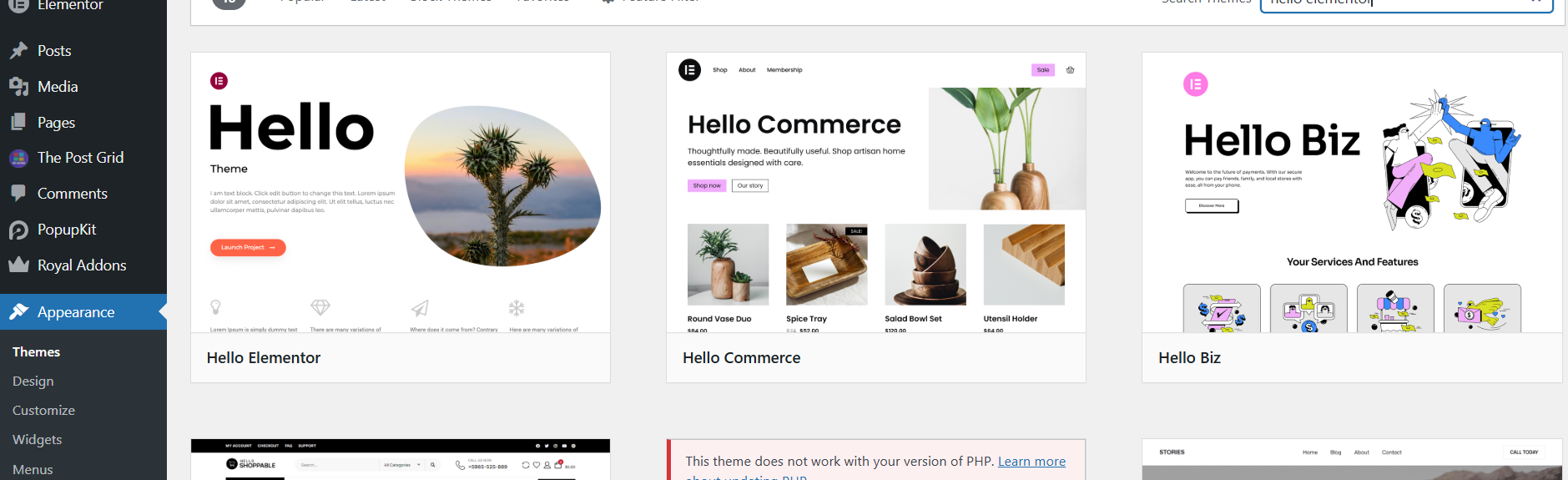
- The Best Choices: Use the Hello Elementor theme or Astra. They are basically “blank slates” designed specifically to let Elementor do the heavy lifting without adding extra, unnecessary code.
5. Use Lightweight Caching Plugin to fix slow Elementor website
In 2026, you don’t need a complicated caching setup. If your host uses a LiteSpeed server (which many affordable hosts do), use the LiteSpeed Cache plugin. It is specifically designed to talk to the server and deliver your pages in milliseconds.
If you aren’t on LiteSpeed, WP-Optimize is a fantastic free choice. It cleans up your database (getting rid of old “revisions” of your posts) and handles file minification. Minification is just a fancy word for “shrinking your code” so it’s easier for browsers to read.
6.My Suggestion: Check Your Hosting Spec
You can optimize your site all day, but if you’re on a $1-per-month shared hosting plan from 2015, you’ll never be truly fast. In 2026, technology has moved on. Ensure your host offers:
- NVMe Storage: This is much faster than standard SSDs.
- PHP 8.3 or higher: Each new version of PHP is faster and more secure.
- CDN Support: A Content Delivery Network (like Cloudflare) stores a copy of your site in different cities around the world, so a visitor in Mumbai doesn’t have to wait for data to travel from a server in New York.
Final Thoughts
A fast website isn’t about speed only; it’s about user experience. If your site takes more than 3 seconds to load, half of your visitors will leave before they even see your content. Follow these six steps to fix slow Elementor website performance and keep your visitors happy with lightning-fast load times.
Is your site still feeling sluggish after trying these steps? Drop a comment below with your URL, and I’ll take a quick look to help you get GetWPFixed!