
We’ve all been there: you click a link, the browser tab spins, and… nothing. In 2026, if your site keeps people waiting for more than two seconds, they aren’t just annoyed—they’re gone. Learning how to fix slow WordPress website performance isn’t just a technical “nice-to-have” anymore; it’s a requirement for staying visible on Google and keeping your readers engaged.
With Google’s latest focus on Interaction to Next Paint (INP) and Largest Contentful Paint (LCP), “fast enough” is a relic of the past. If you’re tired of watching your traffic bounce because of lagging page loads, here is the exact blueprint I use to clear out bottlenecks and get WordPress sites back into the fast lane.
1. Start With a Real-World Speed Audit
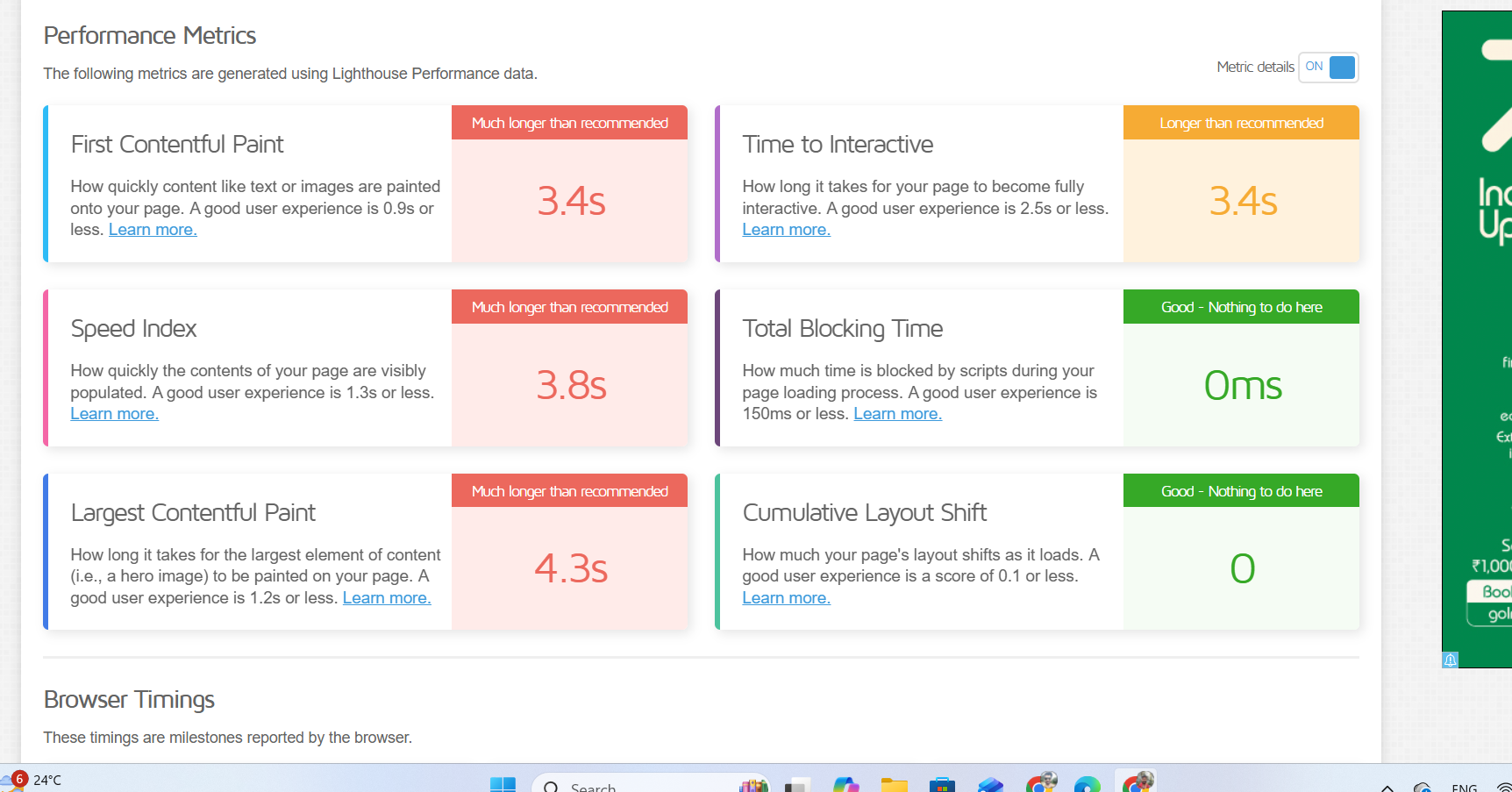
Before you start toggling settings, you need to know what’s actually broken. While a 0–100 score on Google PageSpeed Insights or GTmetrix looks nice, it isn’t the whole story.
- What matters now: Look at your Core Web Vitals.
- The Target: Aim for an LCP under 2.5s and an INP under 200ms. If you’re in the “red” here, Google is likely deprioritizing you in search results.
2. Stop Sabotaging Yourself with Cheap Hosting
You can’t fix slow WordPress website issues if your foundation is shaky. If you’re still paying $3/month for bottom-tier shared hosting, your Time to First Byte (TTFB) will always be your Achilles’ heel.
In 2026, your host should provide PHP 8.3+, NVMe SSD storage, and HTTP/3 support as standard. If they don’t, it might be time to move to a managed provider like Hostinger or MilesWeb or a LiteSpeed-powered server for better native caching.
3. Image Optimization: It’s Not Just About Size Anymore
Big images are still the #1 killer of LCP scores, but compression is only half the battle.
- The New Standards: Skip the JPEGs. Convert your library to WebP or AVIF.
- Smart Loading: While “Lazy Loading” is great for images further down the page, make sure your Hero Image (the one at the very top) is excluded. You want that header to pop up instantly.
4. Be Ruthless With Your Plugins
Every plugin you install adds a new layer of code for the browser to chew through.
- The 30-Day Rule: If you haven’t used a plugin in a month, delete it.
- Swap the Heavyweights: Large page builders like Elementor or Divi can be incredibly bloated. If you’re serious about speed, consider switching to lightweight block-based tools like GenerateBlocks or a performance-first utility like Perfmatters.
5. Advanced Caching: Moving Beyond the Basics
Caching essentially turns your “active” WordPress site into a static file that loads instantly.
For 2026, standard page caching isn’t enough. You need Object Caching (like Redis or Memcached). This allows your server to store database results in the RAM, meaning it doesn’t have to “think” every time a visitor clicks a post.
6. Clean Up Your Technical Debt (CSS & JS)
Clutter often hides in your code. Using a tool like WP Rocket or FlyingPress, you should:
- Minify: Strip out the unnecessary spaces in your code.
- Delay JavaScript: Ensure non-essential scripts—like your chatbot or tracking pixels—don’t load until the user actually starts scrolling or clicking. This gives your main content the “right of way.”
7. Spring Cleaning for Your Database
Over time, your database gets cluttered with “orphaned” data from old plugins and thousands of post revisions. Use WP-Optimize to prune the junk.
Pro Tip: Add a line to your wp-config.php to limit post revisions to 3 or 5. Your future self will thank you.
8. Use a Global CDN
If your server is in New York and your reader is in London, physical distance creates lag. Using a Content Delivery Network (CDN) like Cloudflare or Bunny.net puts a copy of your site on “edge servers” worldwide, so the distance between your data and your user is always short.
FAQ: Troubleshooting Your WordPress Speed
Q: Why did my site suddenly slow down?
Usually, it’s a recent plugin update, a spike in “autoloaded” database data, or your host hitting a resource limit. Always check your recent changes first.
Q: Can I fix my speed for free?
Absolutely. If you use a LiteSpeed server, the free LiteSpeed Cache plugin is incredibly powerful. Manual image optimization and database cleaning also cost $0 but yield huge results.
Q: How do I improve mobile speed specifically?
Focus on reducing JavaScript execution time. On mobile, processors are weaker, so heavy scripts hit twice as hard. Also, ensure your fonts use font-display: swap so text is readable immediately.