WordPress Tutorials for Beginners (2026) | GetWPFixed

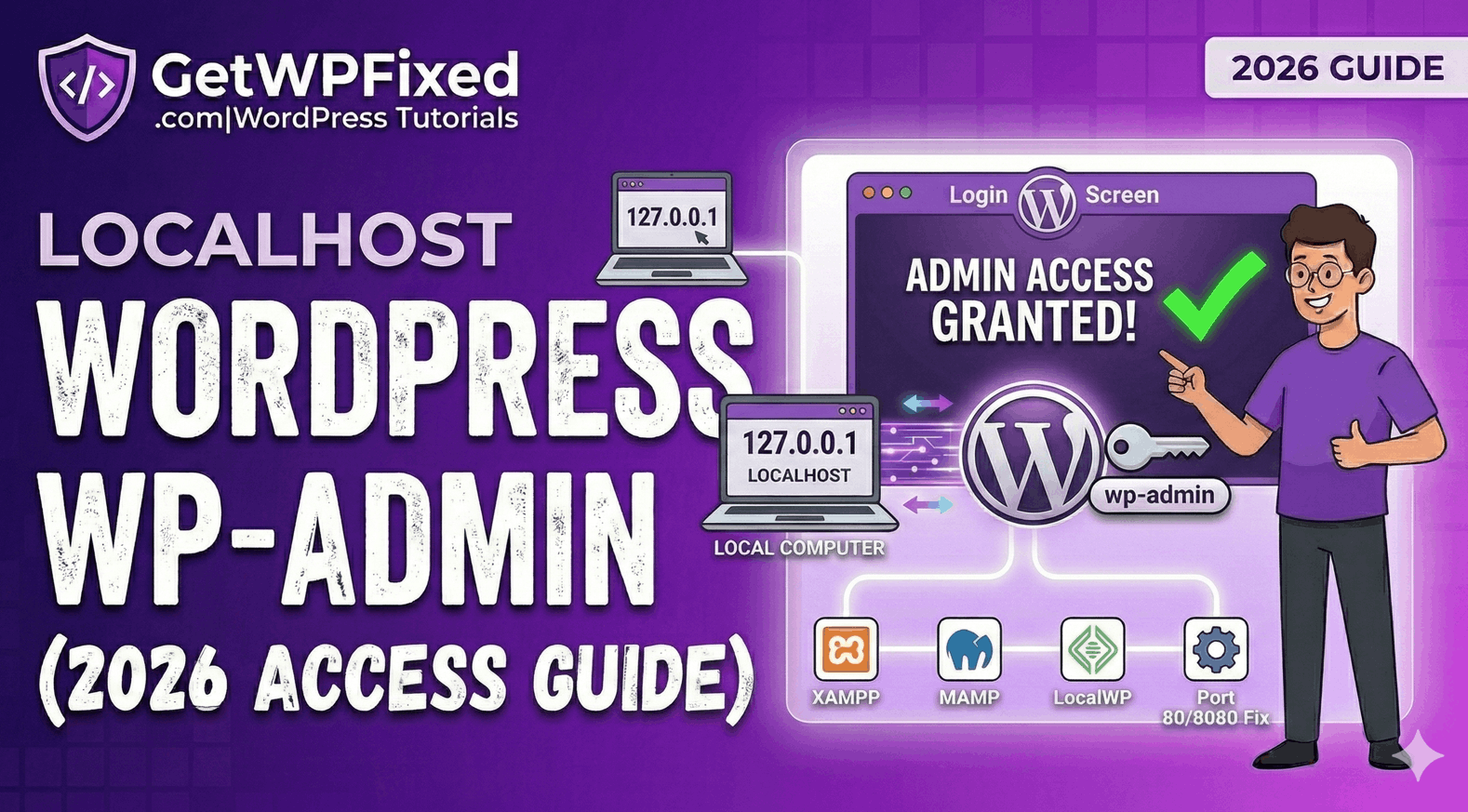
Localhost WordPress WP Admin: How to Access Your Dashboard (2026 Guide)

Troubleshooting localhost wordpress wp admin access on XAMPP and LocalWP

Trying to access your localhost wordpress wp admin panel only to find a ‘404 error’ or a blank screen is incredibly frustrating. Whether you are a US developer staging a new project or a student in India learning the ropes, getting back into your local dashboard is the first priority. At GetWPFixed, I’ve found that most local login issues come down to three simple technical hitches.” Here is my 2026 checklist to get you back into your local dashboard in under 60 seconds. 1. Check Your Local URL Structure When your site is live, it’s usually website.com/wp-admin. On a local server, the path depends on how you named your folder. The Fix: If you are using XAMPP, your URL is likely: http://localhost/YOUR_FOLDER_NAME/wp-admin If you are using LocalWP, it might be a custom domain like: http://mysite.local/wp-admin Pro Tip: If localhost doesn’t work, try using the local IP address: http://127.0.0.1/YOUR_FOLDER_NAME/wp-admin. Sometimes the browser gets confused by the word “localhost.” 2. Solving Port Conflicts for Localhost WordPress WP Admin If you have other software running (like Skype or a work VPN), they often “steal” the port that WordPress needs. If this happens, your localhost wordpress wp admin won’t load because the server can’t start. The Fix: Check your server dashboard (like the XAMPP Control Panel). If you see that Apache is running on port 8080 or 8888 instead of 80, you must include that number in your URL: http://localhost:8080/wp-admin 3. Verification in phpMyAdmin for Localhost WordPress WP Admin If you changed your site’s folder name, WordPress might still be trying to find the old one. This is a common “Pro” level error. The Pro Fix: 1. Open your local phpMyAdmin (usually at http://localhost/phpmyadmin). 2. Find your site’s database and open the wp_options table. 3. Look for the siteurl and home rows. 4. Ensure the path matches your current local folder exactly. If it says http://localhost/old-name, change it to http://localhost/new-name. 4. Moving from Localhost to Live Once you finally log into your localhost wordpress wp admin and finish your masterpiece, you’ll eventually need to show it to the world. Moving a site from a local computer to a US or UK server requires careful migration to avoid “Database connection errors.” (I’ll cover the best migration tools in my next post!) Final Thoughts Accessing your local dashboard should be the easiest part of your day, not the hardest. By double-checking your URL structure and port numbers, you can get back to building. Still stuck on a “Database Connection Error” on your local machine? Tell me which local server you are using (XAMPP, MAMP, or LocalWP) in the comments and I’ll help you troubleshoot!

Dealing with the WordPress ‘Critical Error’: A Pro’s Recovery Guide (2026)

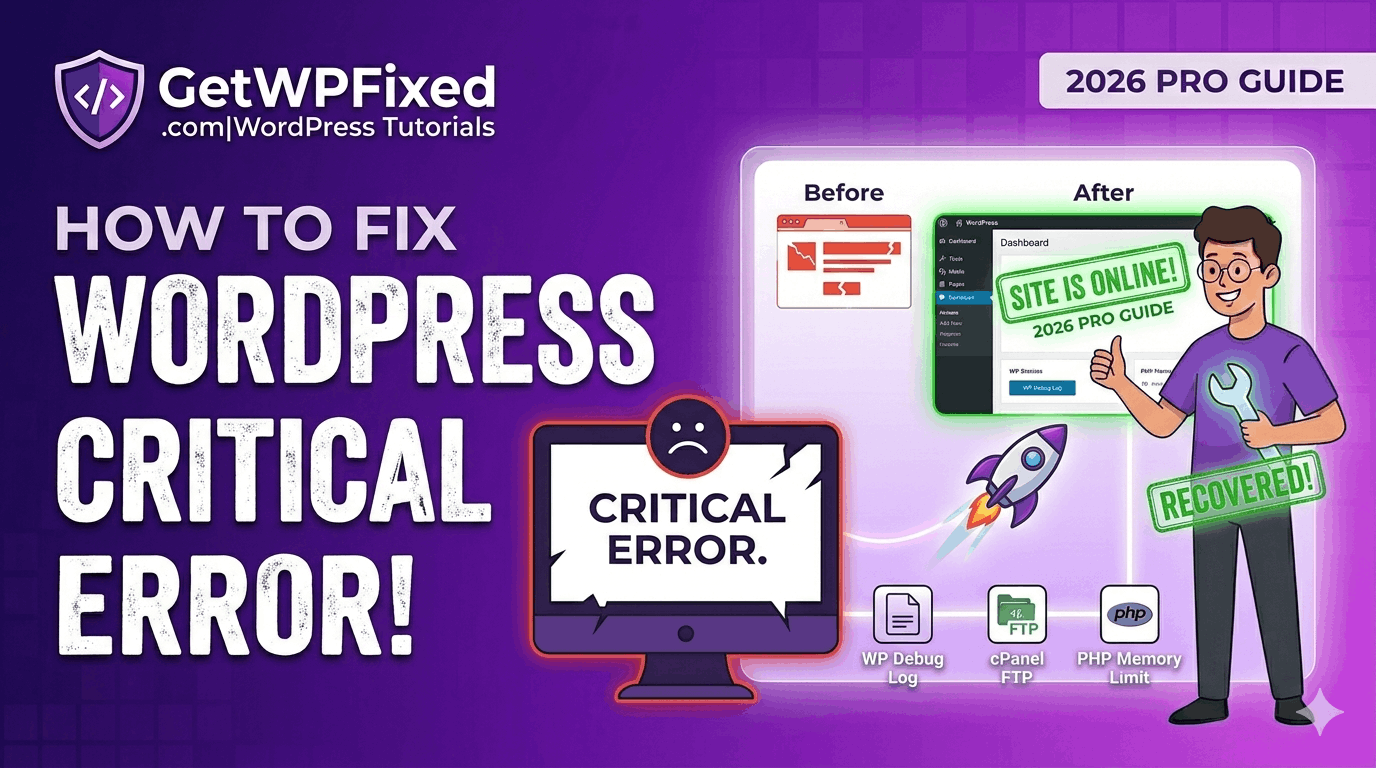
Dattatraya from GetWPFixed showing how to recover a crashed website and fix WordPress critical error

There’s a specific kind of sinking feeling you get in your stomach when you refresh your site and see those seven words: “There has been a critical error on this website.” Your heart drops. Your traffic stops. And usually, your WordPress dashboard is completely locked. In the UK and US, where site uptime is literally money, this isn’t just a technical glitch—it’s a business emergency. I’ve been in the trenches with these errors more times than I care to admit. At GetWPFixed, I’ve learned that while the “White Screen of Death” looks like the end of the world, it’s actually just WordPress protecting your database from broken code. Let’s get your site back online. Here is my pro-level workflow to fix WordPress critical error issues without losing your mind. 1. The “Ghost in the Machine”: Recovery Mode Before you start hacking away at files, check your inbox. Modern WordPress is actually quite helpful—it usually sends an automated “SOS” email to the site admin. The Insider Secret: Look for a link that mentions Recovery Mode. This isn’t just a login; it’s a sandbox that “sandboxes” the broken plugin, allowing you to enter the backend even when the frontend is dead. If that email hasn’t arrived after 10 minutes, move to Step 2. 2. How to Fix WordPress Critical Error Using FTP and File Manager When you’re locked out of the house, you don’t break the door; you find a side window. FTP (or your hosting File Manager) is that window. The Pro Move: Navigate to /wp-content/. Rename your plugins folder to plugins_debug. Refreshing your site now forces WordPress to load with zero plugins. If the site comes back (looking a bit messy), you’ve confirmed the “killer” is a plugin. I usually then rename them back one-by-one—it’s tedious, but it’s the only way to find the exact conflict without guessing. Also Read: How to Create a Professional WordPress Website from Scratch (2026 Guide) 3. Using Debug Mode to Fix WordPress Critical Error in the Code Stop flying blind. If you want to fix WordPress critical error problems like a senior dev, you need to see the “black box” recorder. The Fix: Open your wp-config.php file. You’ll see a line for WP_DEBUG. Set it to true. Crucial Step: Add define( ‘WP_DEBUG_LOG’, true ); right below it. Now, WordPress will whisper its secrets into a file called debug.log in your wp-content folder. It will tell you exactly which file and which line of code caused the crash. 4. The “Memory Exhaustion” Ghost Often, a critical error isn’t about bad code; it’s about too much code. If you’re running Elementor Pro with 20 other plugins on a cheap server, your site might simply be running out of “breath” (PHP Memory). The Pro Fix: In your wp-config.php, add: define( ‘WP_MEMORY_LIMIT’, ‘512M’ );. I’ve seen this single line of code bring “dead” sites back to life in seconds. It’s the digital equivalent of giving your site an oxygen mask. Why Most AI-Generated Guides Fail (And Why This Works) Most AI tools will tell you to “reinstall WordPress.” That is terrible advice. A pro knows that 99% of errors are caused by a single line of conflicting code in a plugin or theme. We don’t delete the house to fix a broken lightbulb. Final Thoughts A critical error is a rite of passage for every WordPress owner. Once you’ve fixed your first one using FTP and Debugging, you’re no longer a beginner—you’re a site operator. Still seeing the White Screen? Drop the last error line from your debug.log in the comments. I’ll personally look at the code and tell you which plugin to delete.

How to Get a 90+ Score on PageSpeed Insights (2026 Guide)

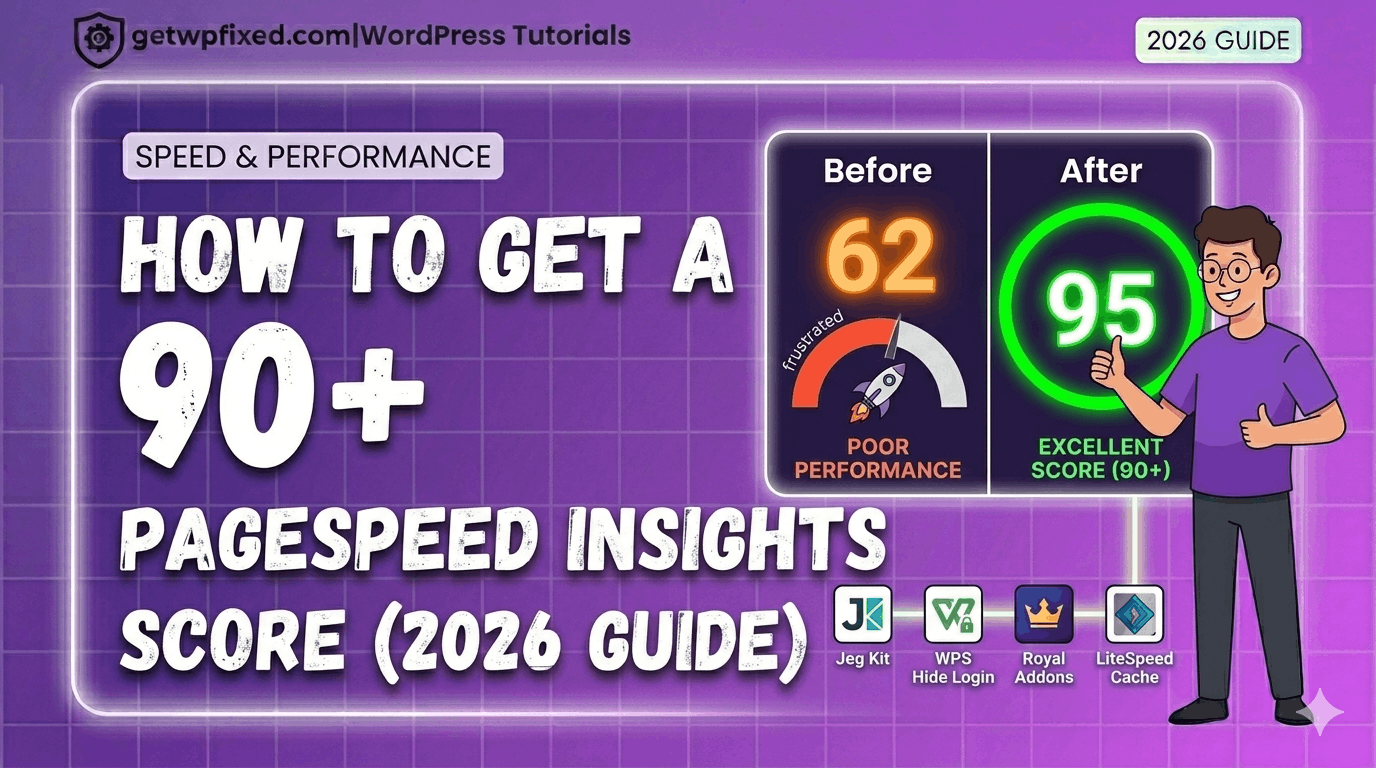
PageSpeed Insights 95 score result for GetWPFixed WordPress tutorial

Achieving a top score on PageSpeed Insights for both mobile and desktop is the goal of every developer. If you want to achieve a 90+ score on PageSpeed Insights in 2026, you don’t need to be a coding expert. I recently took my own site, GetWPFixed, from a struggling 62 to a lightning-fast 95 on mobile and 91 on Desktop In this 2026 guide, I’m going to show you the exact “real world” steps I took to achieve this score on PageSpeed Insights. No fluff, no expensive plugins—just the technical fixes that actually matter. Why a High Score on PageSpeed Insights Matters in 2026 Google doesn’t just look at your keywords anymore; they look at your “Core Web Vitals.” If your site is slow, Google will push you down in the search results. A high score on PageSpeed Insights means: Step 1: Solving the “LCP” (Largest Contentful Paint) Issue In my “Before” test, my LCP was over 10 seconds. That is a disaster! LCP is basically the time it takes for your biggest image or text block to show up. The Fix: I went into my Elementor settings and enabled “Optimized Image Loading.” This tells the browser to prioritize the featured image (the LCP element) and give it “High Priority” loading. Instantly, my score began to climb. Step 2: Eliminating Render-Blocking Resources “Render-blocking” is just a fancy way of saying “the browser is waiting for a piece of code to load before it shows the website.” The Fix: I used the LiteSpeed Cache plugin (standard for modern 2026 hosting) to “Minify” and “Combine” my CSS and JS files. This shrinks the code and makes it much easier for Google to read your site quickly. Step 3: Hosting Your Fonts Locally By default, WordPress often “calls” Google’s servers to get your fonts. This adds an extra delay. The Fix: In Elementor < Editor < Settings < Performance tab , I turned on “Load Google Fonts Locally.” Now, the fonts live on my server, saving precious milliseconds and helping me reach that green score on PageSpeed Insights. Step 4: Converting to Next-Gen Image Formats (WebP) Old-fashioned JPEG and PNG images are too heavy for 2026. The Fix: I used Cloud Convert Website to turn every image into WebP. This reduced my image file sizes by nearly 80% without losing any quality. If you want a deep dive on this, check out my post on how to fix a slow Elementor website. Step 5: The “95 vs 100” Reality Check Many people waste weeks trying to get a 100/100. As you can see from my own results, I hit 95. Is 100 better? On paper, yes. But in reality, a 95 means your site is incredibly fast for humans. To get a 100, I would have to remove my logo or disable important scripts. A green score is a win—don’t obsess over perfection! Mastering Your Score on PageSpeed Insights for Desktop While we focus on Mobile for Google, your desktop visitors expect instant loading. Because desktop screens are larger, your Largest Contentful Paint (LCP) is often a massive hero image. Always ensure your desktop-only background images are compressed and served in WebP to maintain that 98+ score. Final Thoughts Improving your score on PageSpeed Insights isn’t about one single “magic button.” It’s about 4 or 5 small, smart technical choices. By following this 2026 roadmap, you can stop panicking about red numbers and start enjoying a fast, professional website. Is your site stuck in the orange or red zone? Paste your URL in the comments below, and I’ll tell you exactly which “Render-blocking” resource is slowing you down!

How to Create a Professional WordPress Website from Scratch (2026 Guide)

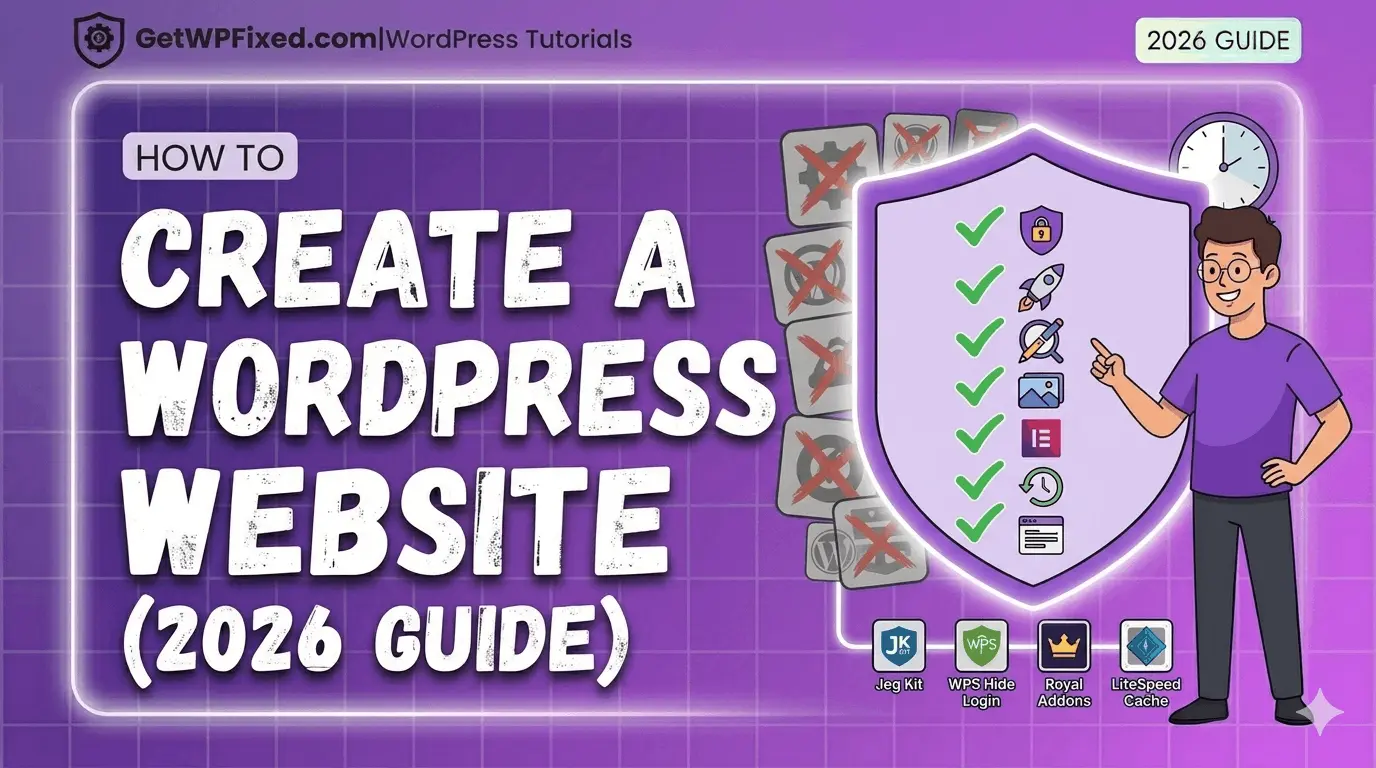
Step-by-step guide showing how to create a professional WordPress website with Hello Elementor and Jeg Kit 2026

If you want to create a professional WordPress website in 2026 without spending thousands of dollars, you are in the right place. Welcome to the ultimate guide where I, Dattatraya, will show you how to build your dream site from scratch. The good news? In 2026, you do not need to be a coding genius or have a $5,000 budget. You just need a plan. At GetWPFixed, I am all about simplifying the complex. I’ve seen thousands of people start their sites, and I know exactly where they get stuck. Forget the “get-rich-quick” tutorials. This is a real, human, honest roadmap. By the end of this guide, you will know exactly how to create a professional WordPress website that is fast, secure, and ready to dominate your niche. Let’s get you fixed! The “Dattatraya Philosophy”: Free but Pro Before we start, I need to tell you my one rule for this guide: We will utilize powerful FREE tools to get a premium result. Many “experts” in 2026 will tell you that you must buy Elementor Pro, a premium theme, and five different “Pro” addons to get a high-quality site. That is incorrect. My 10-step method will show you how to use a standard theme like Hello Elementor, powerful free addons like Royal Elementor Addons, and advanced free designers like Jeg Elementor Kit to build a site that looks like it cost thousands of dollars. Here is your 10-step roadmap to creation. Part 1: The Invisible Foundation (Hosting & Install) Step 1: Secure your Domain & Hosting (Your 2026 Check) Think of your Domain (e.g., getwpfixed.com) as your street address, and Hosting as the actual physical house. You must own your domain, and your hosting is the most critical technical choice you will make. In 2026, do not accept cheap, outdated hosting from a “big name” host. Technology has moved on. If your host doesn’t offer this specific 2026 checklist, move on: These specs are the foundation for a fast site. Remember our core principle: optimizing performance is the key to having a successful site, and it all starts here, just like I discussed in my how to fix a slow Elementor website guide. Step 2: Install WordPress (The One-Click Way) Almost every modern host offers a “One-Click WordPress Install” or an “Auto-Installer.” It usually looks like a large blue button in your hosting control panel. Use it. Step 3: Cleanup and Basic Settings When you log in for the first time (yourdomain.com/wp-admin), you will see some sample content. Be ruthless: Finally, go to Settings > Permalinks. Change this setting to “Post Name.” This ensures your URL looks like mysite.com/about instead of mysite.com/?p=123. It’s cleaner for users and critical for SEO. Part 2: Design & Content (The Vision) Step 4: Choose a “Speed-First” Theme Choosing the right theme is the first major decision you make when you create a professional WordPress website. Elementor is your “designer,” not your theme. You need a simple “blank canvas.” For this guide, I highly recommend installing the free Hello Elementor theme. It is a “minimalist shell” designed specifically to let Elementor do the work, without adding extra code that can slow your site down—a critical choice if you want to fix slow Elementor website issues later. Step 5: Using Elementor and Jeg Kit to Create a Professional WordPress Website This is where the magic happens. We need our design team: Why Jeg Kit? This is my “pro hack” for 2026. The free version of Elementor locks you out of designing your site’s header and footer. Jeg Elementor Kit unlocks these exact “Pro” features for free. It lets you create custom headers, footers, and archive pages, and includes dozens of stunning, pre-made template kits that you can import with a single click. Part 3: The Technical Standard (Security & Speed) Step 6: Install the Essential Must-Have Plugins You are ready to activate the tools that will power your site. This is a common point where beginners overload their sites, so we will be minimalist. Refer back to my list of 7 essential must have plugins for a complete guide. For this creation roadmap, ensure you install these three immediately: Step 7: Finalize Performance Optimization A slow site will fail, regardless of how good it looks. With LiteSpeed activated, go to Elementor > Settings > Performance and enable the native experimental features for improved asset loading. Also, ensure you have a plugin like Converter for Media installed to serve efficient WebP images. These are the steps I detailed to fix slow Elementor website performance, and they are not optional in 2026! Step 8: Complete Foundational Security Your site is now a target. We must harden the defenses. Remember what we learned about securing your entrance? Part 4: Building the Framework (The Pages) Step 9: Create Your “Core” Pages Your site needs structure. Go to Pages > Add New and create five pages with these standard titles (we won’t design them yet, just create the structure): Crucial Link: Go to Settings > Reading. Change “Your homepage displays” to “A static page.” Select your newly created “Homepage” for the homepage and “Blog” for the posts page. Now that your pages are ready, you can see how easy it is to create a professional WordPress website using free tools. Step 10: Launch Your First Post & Submit Your Sitemap Go to Posts > Add New and write your very first blog post! Tell your audience what your site is about and what they can expect. Share your passion, but remember that security is key, even when launching content. If you’ve been working on routine maintenance and see an error, don’t panic! Check out my guide if your WordPress is stuck in maintenance mode to get back online in minutes. Once your post is published, go to your Rank Math SEO settings, find the Sitemap settings, and copy your Sitemap URL (usually sitemap_index.xml). You must submit this URL to your Google Search Console account so Google can officially index your … Read more