
How to Get a 90+ Score on PageSpeed Insights (2026 Guide)
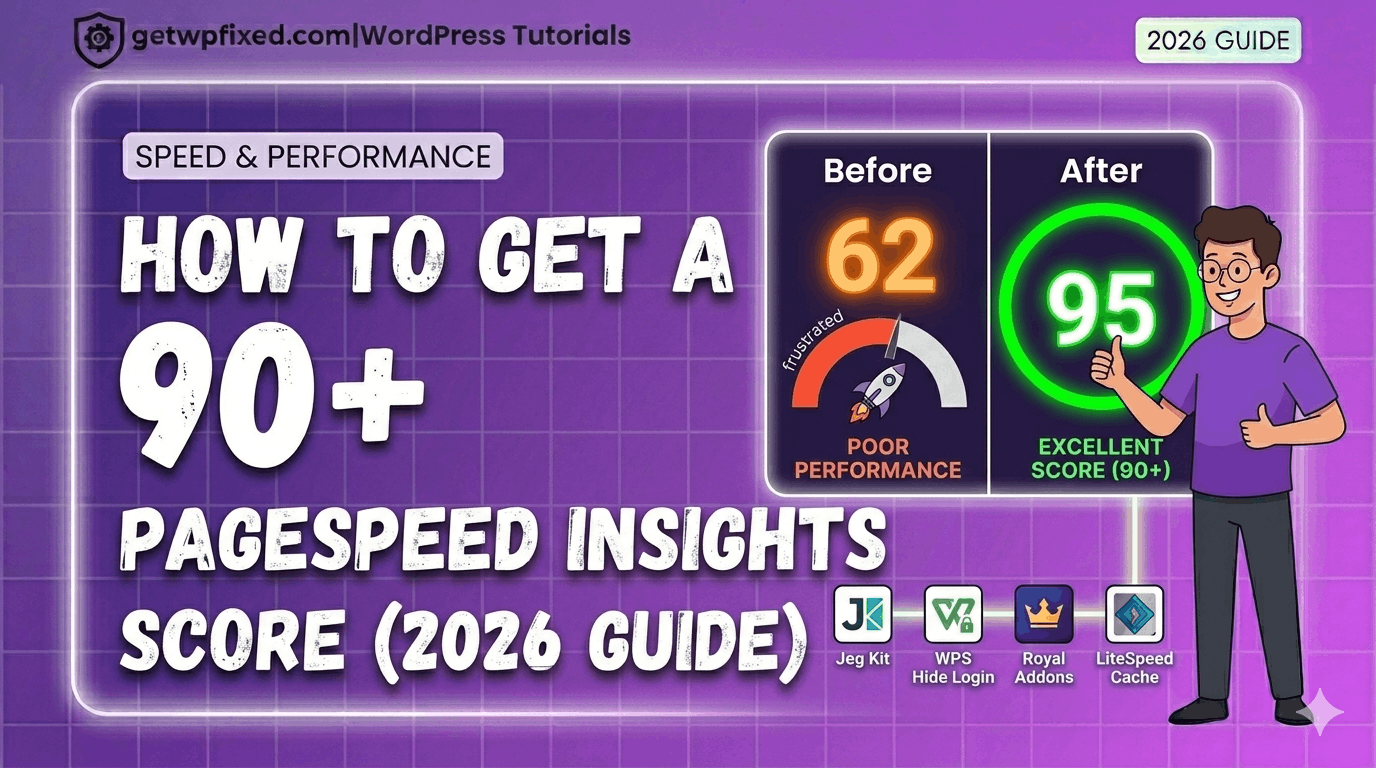
Achieving a top score on PageSpeed Insights for both mobile and desktop is the goal of every developer. If you want to achieve a 90+ score on PageSpeed Insights in 2026, you don’t need to be a coding expert. I recently took my own site, GetWPFixed, from a struggling 62 to a lightning-fast 95 on mobile and 91 on Desktop In this 2026 guide, I’m going to show you the exact “real world” steps I took to achieve this score on PageSpeed Insights. No fluff, no expensive plugins—just the technical fixes that actually matter. Why a High Score on PageSpeed Insights Matters in 2026 Google doesn’t just look at your keywords anymore; they look at your “Core Web Vitals.” If your site is slow, Google will push you down in the search results. A high score on PageSpeed Insights means: Step 1: Solving the “LCP” (Largest Contentful Paint) Issue In my “Before” test, my LCP was over 10 seconds. That is a disaster! LCP is basically the time it takes for your biggest image or text block to show up. The Fix: I went into my Elementor settings and enabled “Optimized Image Loading.” This tells the browser to prioritize the featured image (the LCP element) and give it “High Priority” loading. Instantly, my score began to climb. Step 2: Eliminating Render-Blocking Resources “Render-blocking” is just a fancy way of saying “the browser is waiting for a piece of code to load before it shows the website.” The Fix: I used the LiteSpeed Cache plugin (standard for modern 2026 hosting) to “Minify” and “Combine” my CSS and JS files. This shrinks the code and makes it much easier for Google to read your site quickly. Step 3: Hosting Your Fonts Locally By default, WordPress often “calls” Google’s servers to get your fonts. This adds an extra delay. The Fix: In Elementor < Editor < Settings < Performance tab , I turned on “Load Google Fonts Locally.” Now, the fonts live on my server, saving precious milliseconds and helping me reach that green score on PageSpeed Insights. Step 4: Converting to Next-Gen Image Formats (WebP) Old-fashioned JPEG and PNG images are too heavy for 2026. The Fix: I used Cloud Convert Website to turn every image into WebP. This reduced my image file sizes by nearly 80% without losing any quality. If you want a deep dive on this, check out my post on how to fix a slow Elementor website. Step 5: The “95 vs 100” Reality Check Many people waste weeks trying to get a 100/100. As you can see from my own results, I hit 95. Is 100 better? On paper, yes. But in reality, a 95 means your site is incredibly fast for humans. To get a 100, I would have to remove my logo or disable important scripts. A green score is a win—don’t obsess over perfection! Mastering Your Score on PageSpeed Insights for Desktop While we focus on Mobile for Google, your desktop visitors expect instant loading. Because desktop screens are larger, your Largest Contentful Paint (LCP) is often a massive hero image. Always ensure your desktop-only background images are compressed and served in WebP to maintain that 98+ score. Final Thoughts Improving your score on PageSpeed Insights isn’t about one single “magic button.” It’s about 4 or 5 small, smart technical choices. By following this 2026 roadmap, you can stop panicking about red numbers and start enjoying a fast, professional website. Is your site stuck in the orange or red zone? Paste your URL in the comments below, and I’ll tell you exactly which “Render-blocking” resource is slowing you down!