
If you’ve ever looked at your site’s raw access logs, you’ve seen it: thousands of requests hitting /wp-login.php every single hour. At GetWPFixed, we manage sites for clients all over the world, and whether you’re running a small blog in London or a massive e-commerce store in Tokyo, the problem is the same. Automated bots are constantly knocking on your door, trying to guess their way in.
Relying on just a “strong password” isn’t enough anymore. If a bot tries 10,000 combinations, eventually they might get lucky—or worse, they’ll just slow down your server until it crashes.
Here is how we actually protect the sites we manage.
1. Move Your Login Page to Secure WordPress Login
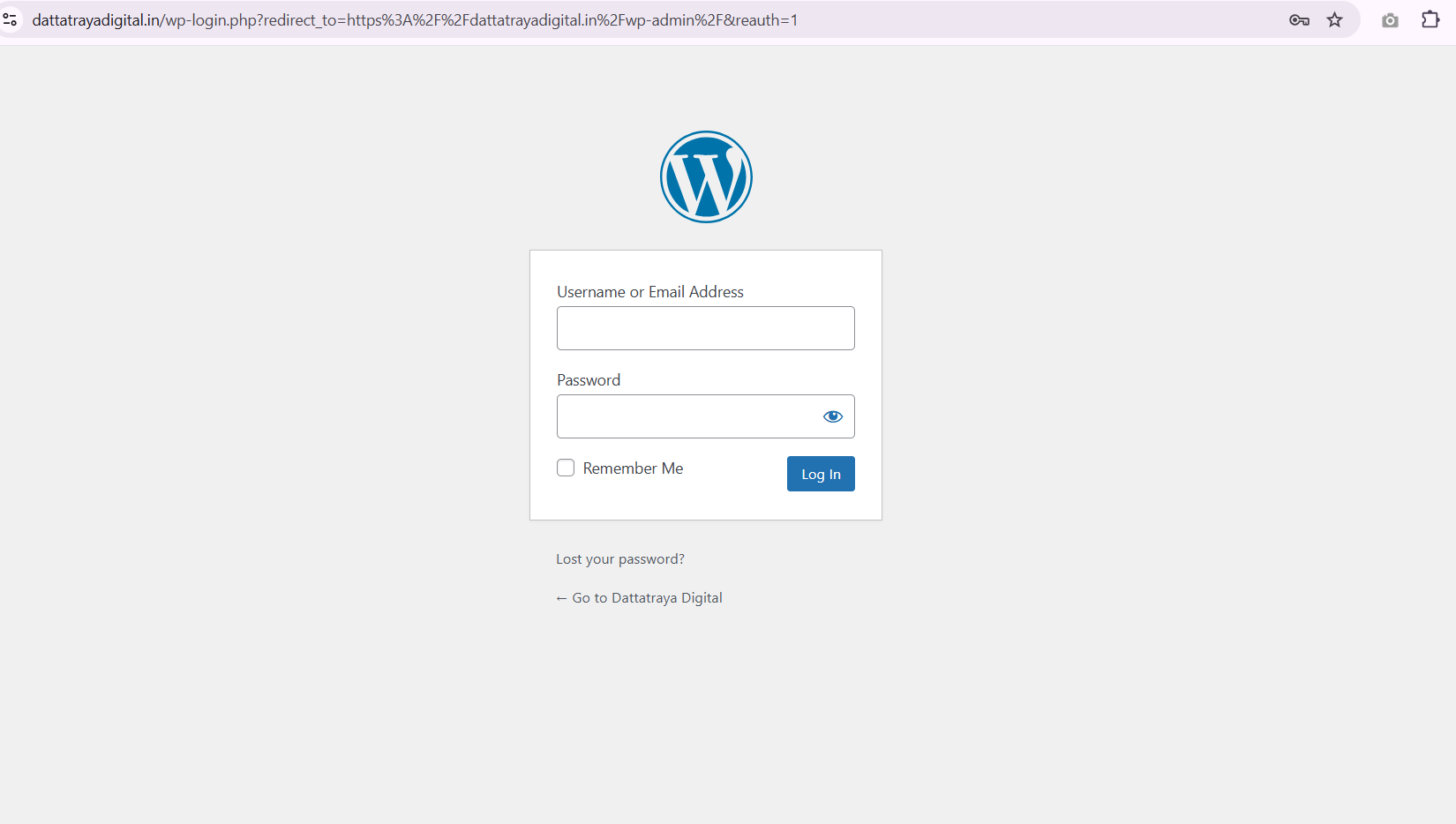
By default, every WordPress site has its login at /wp-admin or /wp-login.php. It’s like putting a “Store Vault This Way” sign in a crowded building.
Why we do this:
Technically, changing your URL is “Security through Obscurity.” It doesn’t fix a vulnerability in the code, but it eliminates the noise. When you move your login to something like /internal-access-only or /getwpfixed-login, 99.9% of those automated bots won’t even find the page to start guessing.
Our Recommendation:
We almost always use WPS Hide Login. It’s incredibly lightweight.
- The Trap: If you do this, bookmark the new URL immediately. We’ve had many frantic calls from clients who locked themselves out and didn’t know where their own login page went. If that happens, you have to go into the file manager via FTP and rename the plugin folder to get back in.
2. Limit Failed Attempts to Secure WordPress Login
WordPress, by itself, allows someone to try a million passwords without ever being blocked. This is a massive oversight.
The “War Story”:
We recently took on a client who was experiencing “random” site slowdowns. It turned out they weren’t being “hacked” in the traditional sense, but a brute-force attack was hitting their login page so hard that the database was overwhelmed just trying to check the incorrect passwords.
How to fix it:
You need a “3 strikes and you’re out” rule.
- Limit Login Attempts Reloaded: This is our go-to. It’s simple and effective.
- Wordfence: If you want a full “firewall” approach, Wordfence is great, but it can be heavy for smaller servers.
For a global audience, we recommend setting a long lockout period. If someone misses three times, block them for 24 hours. A real human user can email you if they get stuck; a bot will just move on to an easier target.
3. Use 2FA to Secure WordPress Login (Non-Negotiable)
If you take only one thing away from this guide, let it be this: Passwords are no longer enough. With the number of data breaches happening globally, there’s a good chance one of your old passwords is already in a hacker’s database.
How it works:
2FA adds a second step. Even if a hacker has your username and your password, they still can’t get in without a one-time code from your phone.
Our Expert Opinion:
Don’t use “Email codes” for 2FA—they are slow and can be intercepted. Use an app like Google Authenticator or Authy.
- Plugin of choice: WP 2FA. It’s clean, it’s modern, and it doesn’t clutter your site with unnecessary features. We enforce this for every administrator-level account we manage.
Summary: Your Checklist to Secure WordPress Login
Security doesn’t have to be a month-long project. You can do this in 15 minutes:
- Backup first. Always.
- Move your login URL (and save the new link!).
- Install a lockout plugin to stop the brute-force scripts.
- Turn on 2FA for yourself and any other admins.
Still Feeling Vulnerable?
Managing security for a global website can be a full-time job. At GetWPFixed, we live and breathe WordPress security. Whether you’ve been hacked and need a clean-up, or you just want to make sure you’re as safe as possible, we’re here to take that weight off your shoulders.