4 Best Free Theme Builder Plugins for WordPress (2026)
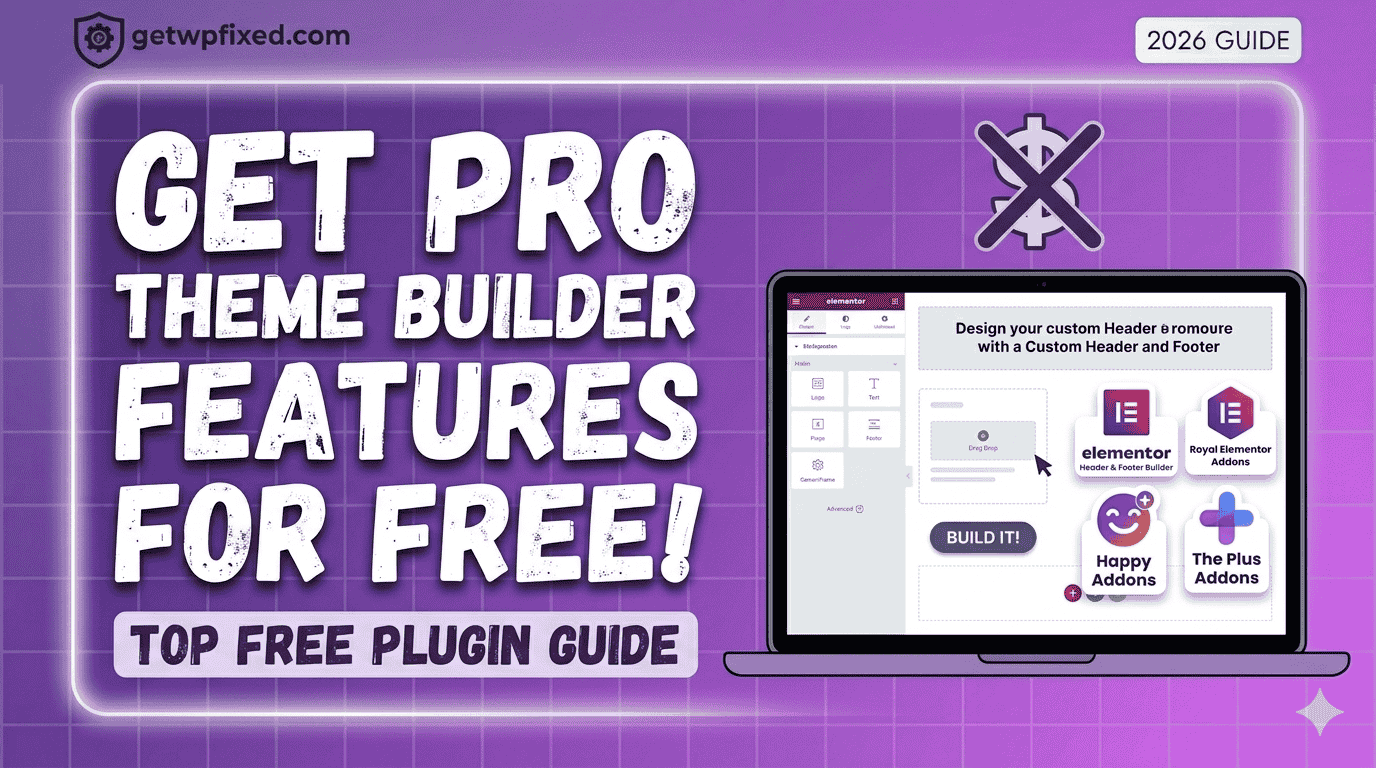
Let’s be honest: Elementor Pro is amazing, but not everyone has the budget for it when they are just starting out. The biggest “missing piece” in the free version of Elementor is the Theme Builder—the tool that lets you design your own custom headers, footers, and blog post layouts. If you’ve ever felt “stuck” with your theme’s default header or footer, I have good news. You don’t need to reach for your credit card just yet. At GetWPFixed, I’m all about finding smart workarounds. Here are the best free theme builder plugins that give you Pro power for $0. “Before you start building with these free tools, make sure your editor is working smoothly—if you run into any loading issues, here is my guide to fixing the Elementor loading circle.” 1.Jeg Elementor Kit (My Top Choice) By using Jeg Elementor Kit, you can create beautiful-looking websites with just a single click. The magic here is in their template library—you can import a full, professional-looking design instantly. Personally, I have made lots of websites using this plugin, and it is my preferred choice for every new project I start. It’s fast, reliable, and the free version gives you a surprising amount of power. It includes a dedicated Theme Builder menu where you can visually design your header, footer, and even your 404 pages without touching a single line of code. 2. Royal Elementor Addons By using Royal Elementor Addons, you can create beautiful-looking websites with just a single click. The magic here is in their template library—you can import a full, professional-looking design instantly. Personally, I have made lots of websites using this plugin, and it is my preferred choice for every new project I start. It’s fast, reliable, and the free version gives you a surprising amount of power. 3. Happy Addons If you’re looking for a theme builder that feels “fun” but is incredibly powerful, Happy Addons is a great contender. Their free version includes a “Theme Builder” feature that specifically helps you design custom headers and footers. 4.The Plus Addons for Elementor The Plus Addons is like a Swiss Army knife for WordPress. They offer a “UI Builder” in their free version that lets you customize specific parts of your theme that the standard Elementor free version usually locks away. 5. Why Not Just Use a “Block” Theme? In 2026, WordPress itself has become a “Theme Builder” through Full Site Editing (FSE). If you use a theme like Blocksy or Astra, they have built-in header/footer builders that work alongside Elementor perfectly. Sometimes the “best” plugin is actually just using a better theme! Final Thoughts You don’t need a massive budget to have a professional-looking site. Start with Royal Elementor Addons—it’s stable, fast, and gives you that ‘one-click’ professional finish. While these plugins are great, remember that keeping your site secure is just as important. Check out our WordPress Security Guide to keep your new designs safe.” Are you trying to build a specific custom layout right now? Drop a comment below and let’s figure it out together! Check out my Portfolio.